Desktop PLP
Desktop PLP is a carousel-like feature but takes up the whole screen of a desktop device.
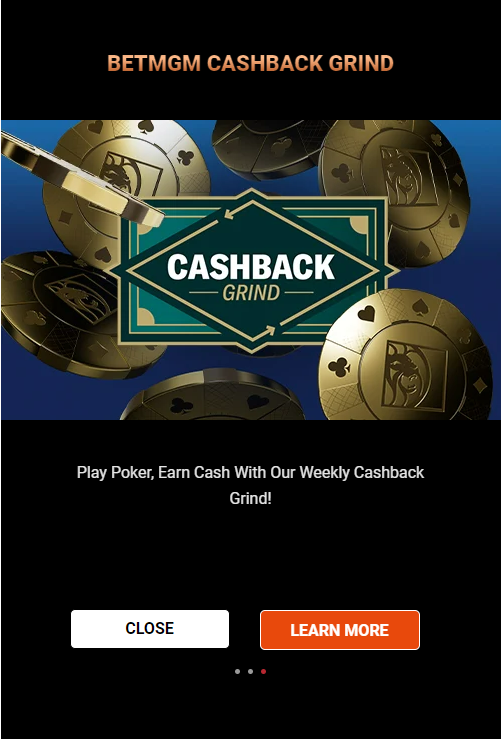
Building desktop PLP
Sitecore Path
Content > Vanilla.desktop > brand/state > desktopPoker-v1.0 > Regional > Global > desktopPLP > desktopPLP-LIVE
Go to the above Sitecore Path. Then do the following:
Step 1. Duplicate File
- Right-click the file you want to duplicate.
- Choose Copy To
- Remove the URL of your choosen File
- Click Copy
- Rename the file to your ticket's name
Step 2: Edit PokerPromotionData
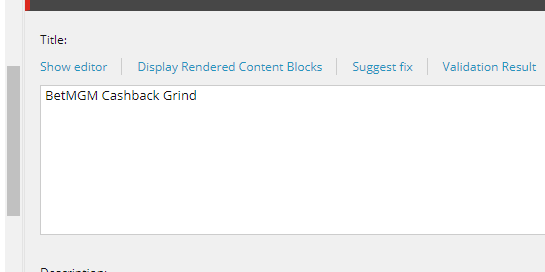
| Title | Use Poker Tile Title |
|
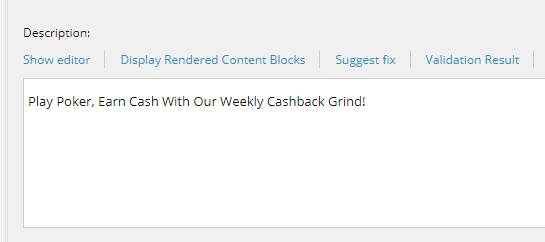
| Description | Use Poker Tile Subtitle |
|
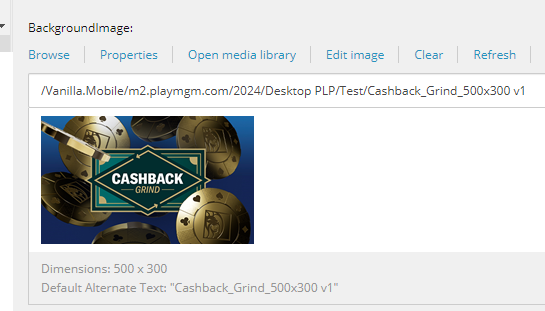
| BackgroupImage | Asset with size 500 x 300 |
|
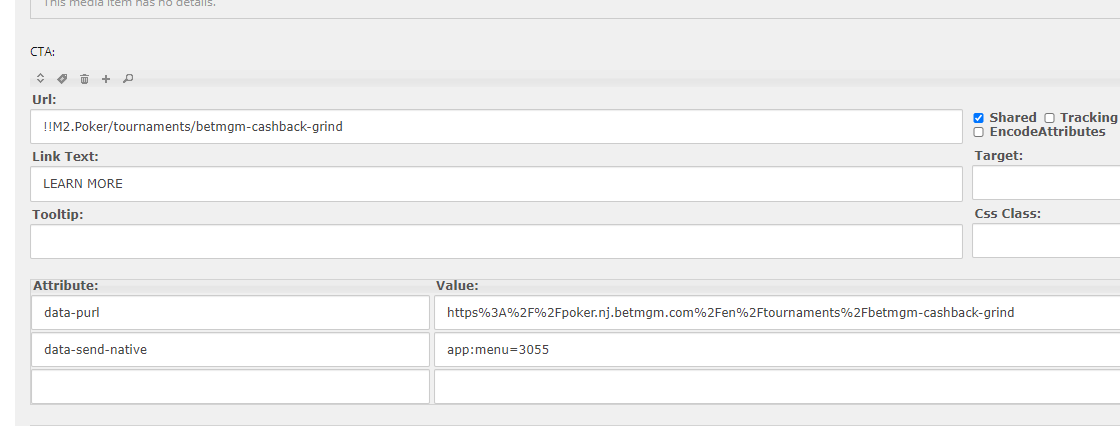
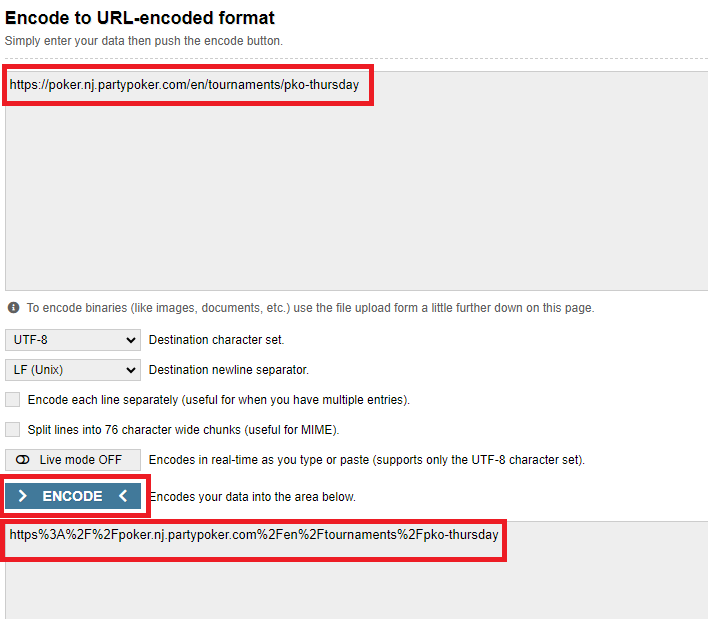
| CTA | Insert the appropriate CTA, this is a CTA after Opt-In. In the data-purl insert the clean URL (use https://www.urlencoder.org/). |
|
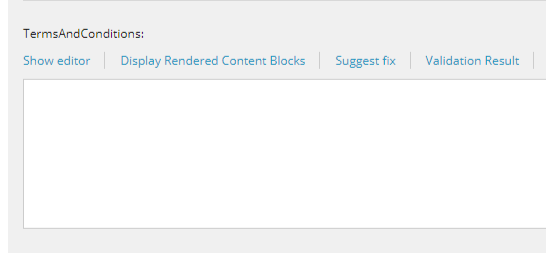
| TermsAndConditions | If the promo has Opt-In CTA the Terms & Condition will have a smartlink to the Tourney Page, if not leave this empty |
|
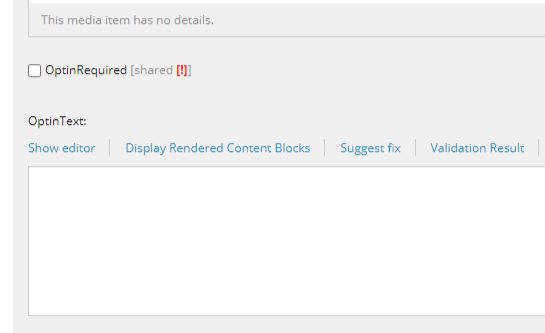
| OptInRequired & OptInText | If the promo has Opt-In CTA, tick this and Inpit OPT IN. If not, untick this. |
|
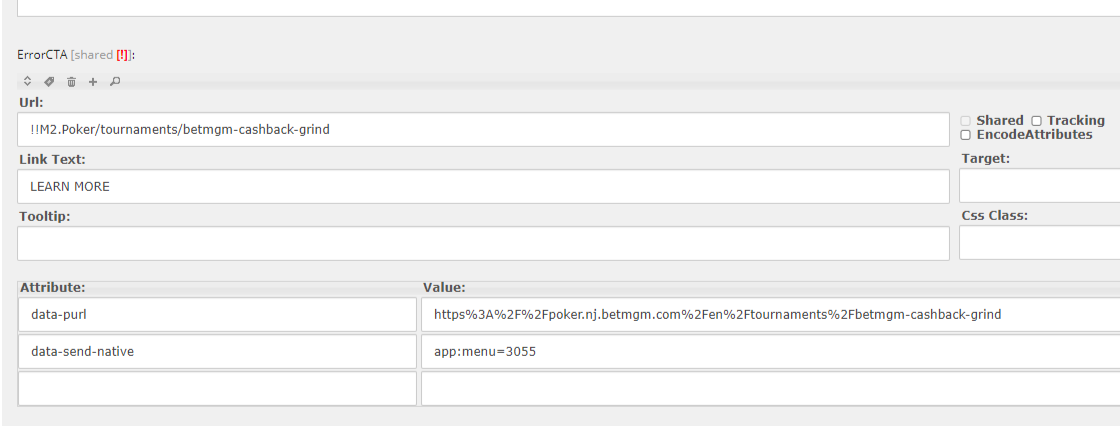
| ErrorCTA | In case the PAT ID is invalid this CTA will show up, either put the TourneyPage smartlink or PromoHub Smartlink. In the data-purl insert the clean URL (use https://www.urlencoder.org/). |
|
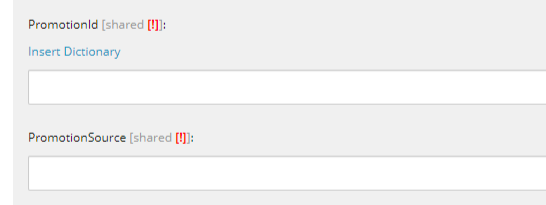
| PromotionalId & Source | Insert here the PAT ID, and choose Promos. (Leave empty if non opt-in promo) |
|
URL Cleaner
To clean URL use https://www.urlencoder.org/
Step 3: Filter & Publishing Date
- Insert your QA Filter under Condition
QueryString.Get('qa') = 'manila'
- Clear Publishing Date (for new builds)
Step 4: Screenshot your PLP
Go to your sites plp preview page with your qa filter name, then look for your output.
https://poker.nj.betmgm.com/en/clientplp?qa=manila