Video Banners
A video banner is a component on the casino homepage of a product, that plays a trailer or teaser for a game.
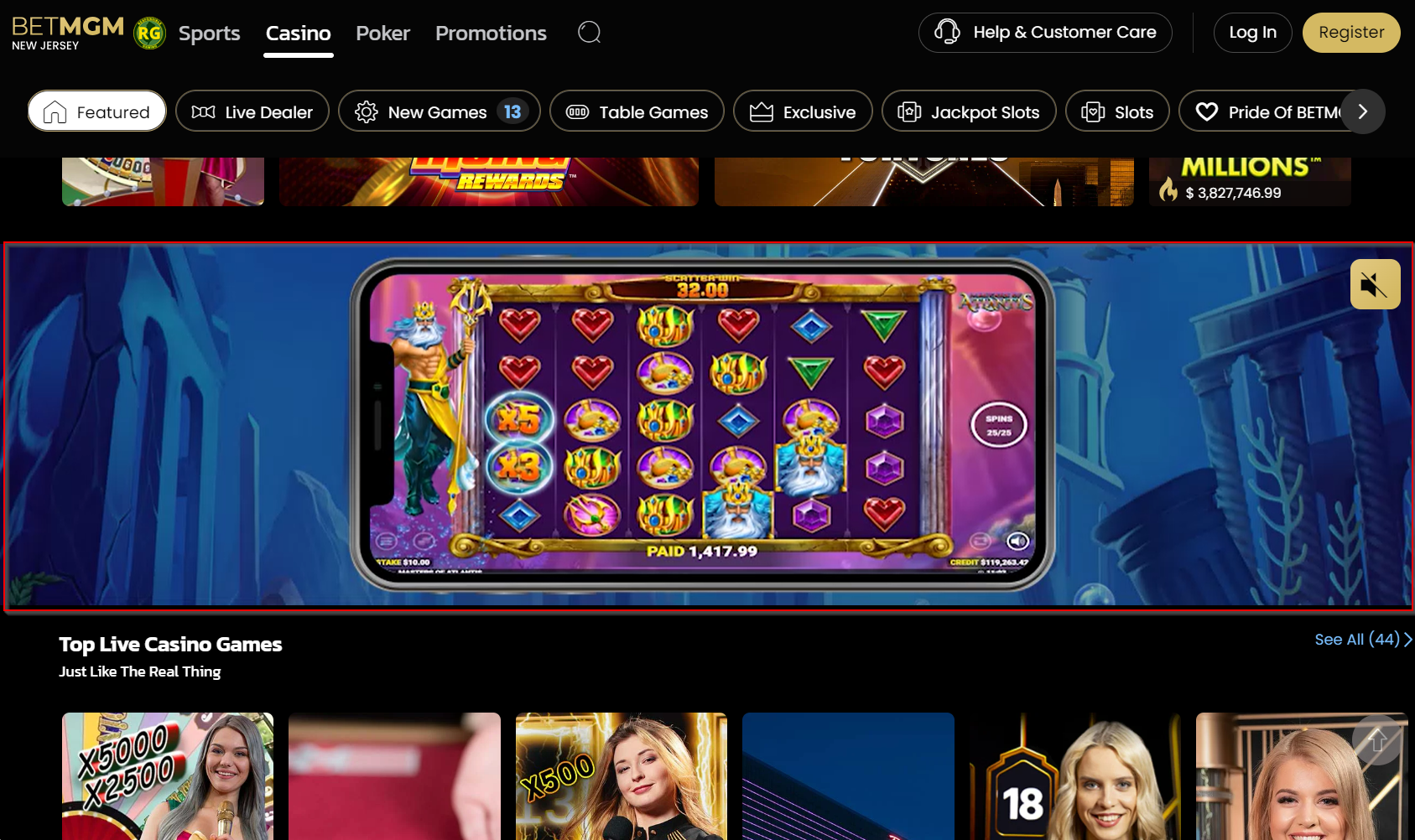
The video banner is updated from time to time to display different teasers in a period of time. To update the video banner see sitecore path below.
First check if the game is live. If not, do not publish the component. Notify your sublead or make a comment when you submit on Monday.
Video Banners are updated in real time, if there is still a video banner live on casino home, wait until the existing video banner unpublishing date to be finished until you can update the contents of the video banner.
Content > Vanilla.Mobile > State/Brand > MobileCasino-v1.0 > LMTCategories > instantCasino
For each state and brand the item to is named differently, see guide below to edit the proper video banner.
NJ | PA | MI | WV | ON | |
|---|---|---|---|---|---|
BetMGM | |||||
BetMGM Arcade | |||||
Borgata | |||||
PartyCasino | |||||
Getting Assets
For updating the Video Banner, 2 assets are required, a image, 1200x300 Image and a MP4 video.
These assets are acquired differently compared to other tickets. See steps below on how to get these assets:
- Go to the parent ticket
- Open Project Details tab
- Scroll down to see
Project relationshipssection and clikc the link under theThis Resolveslabel. - This will open a
Request, and click itsRequest Detailstab. - Under the
Detailssection, it will be under theCMS descriptionlabel. - Click both links to open each of the assets.
The image is uploaded to sitecore. See this guide on how to upload assets to sitecore. While for the video, just copy its URL for now as we don't need to upload it to sitecore.
There is a new update on the Video Banner wherein we will put the mp4 file in Sitecore. See the guide here.
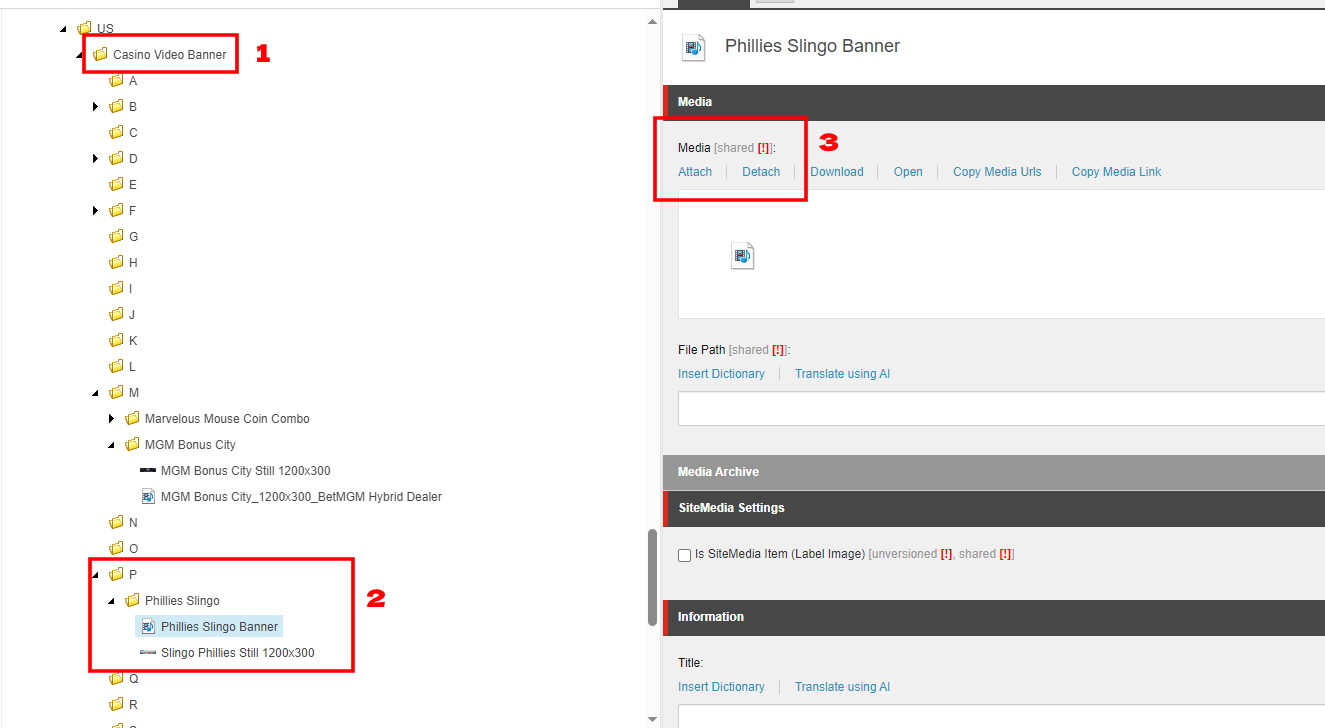
Uploading the Video
1. Download the provided video. Then go to this sitecore directory for Casino Video Banners. Then go to the first letter folder of the game title and create a new folder and name it with your game title.
2. Find and duplicate any media file from other folders to your new folder. Rename it to your game title.
3. Select the your media file, then click on "Detach", then click "Attach" to upload your video.
Updating The Video Banner
Upon opening the appropriate Video Banner for each state, scroll down to the GameVideo section. See table below to update the appropriate fields.
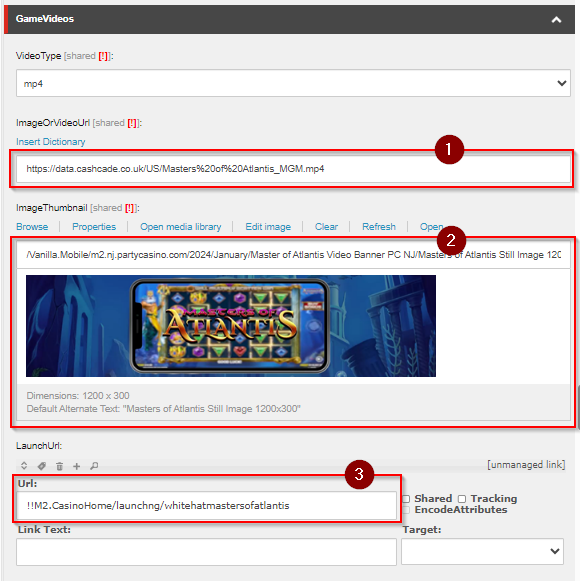
Field | Value |
|---|---|
ImageOrVideoUrl | video Media Link |
ImageThumbnail |
|
LaunchURL > Url |
LaunchURL
On the Casino home if the game is being shown with a Exclusive tag under the Featured section. Use the smartlink for exclusive games
!!M2.CasinoHome/c/exclusive
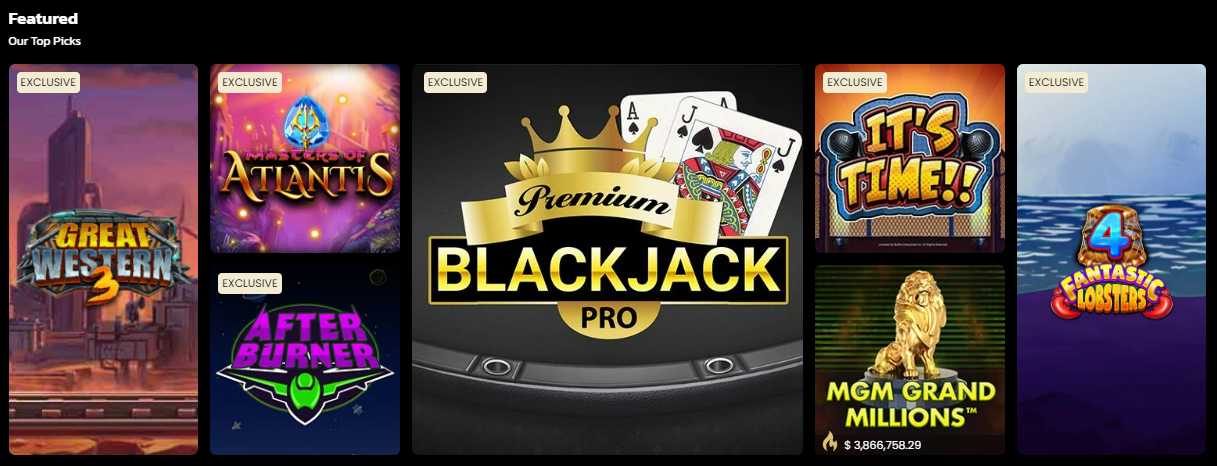
If not use the launch url of the game which can be get here in the Smartlinks guide, or in the smartlinks page of the brand state.
ODR Video Banner
Another type of video banner is the ODR video banner. Some states have ODR Video Banners which also needs to be updated if mentioned in the needs for your ticket.
Content > Clients > state/brand > Casino > NativeJackpotWidget > Native
Use reference below to navigate to the the proper item to edit from the Native folder.
NJ | PA | MI | WV | ON | |
|---|---|---|---|---|---|
BetMGM | |||||
Borgata | |||||
Party Casino |
Most of the ODR video banners are not yet live, please confirm to your sub lead if this is required to update also along with the default video banner.
Scheduling
Do not forget to set the publishing dates for the video banner, the dates is often times mentioned in the Project Details tab of the Workfront ticket, Under the Description section it is mentioned.
Use the dates provided to update the publishing dates of the video banner.
Also update the Carousel Scheduler to add the newly updated video banner.
Commenting
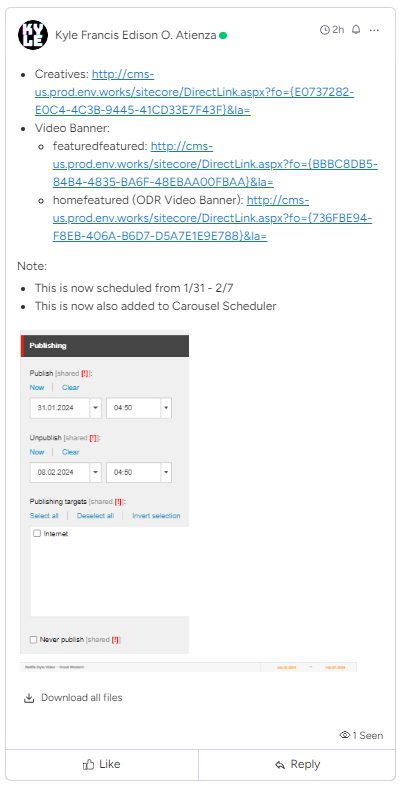
On Commenting for video banner, include the screenshots for the publishing date and the added item on the Carousel Scheduler for the updated video banner
Example of Video Banner Comment