Landing Page
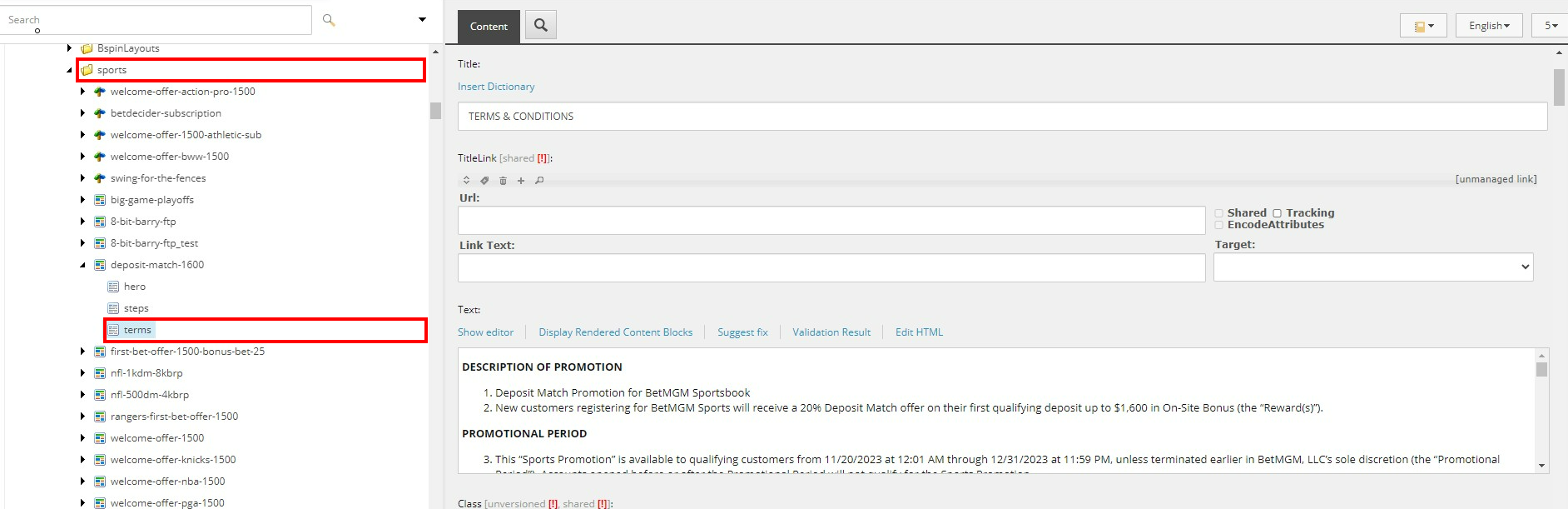
Content > Vanilla.Mobile > state/brand > Promo > casino or sports or poker
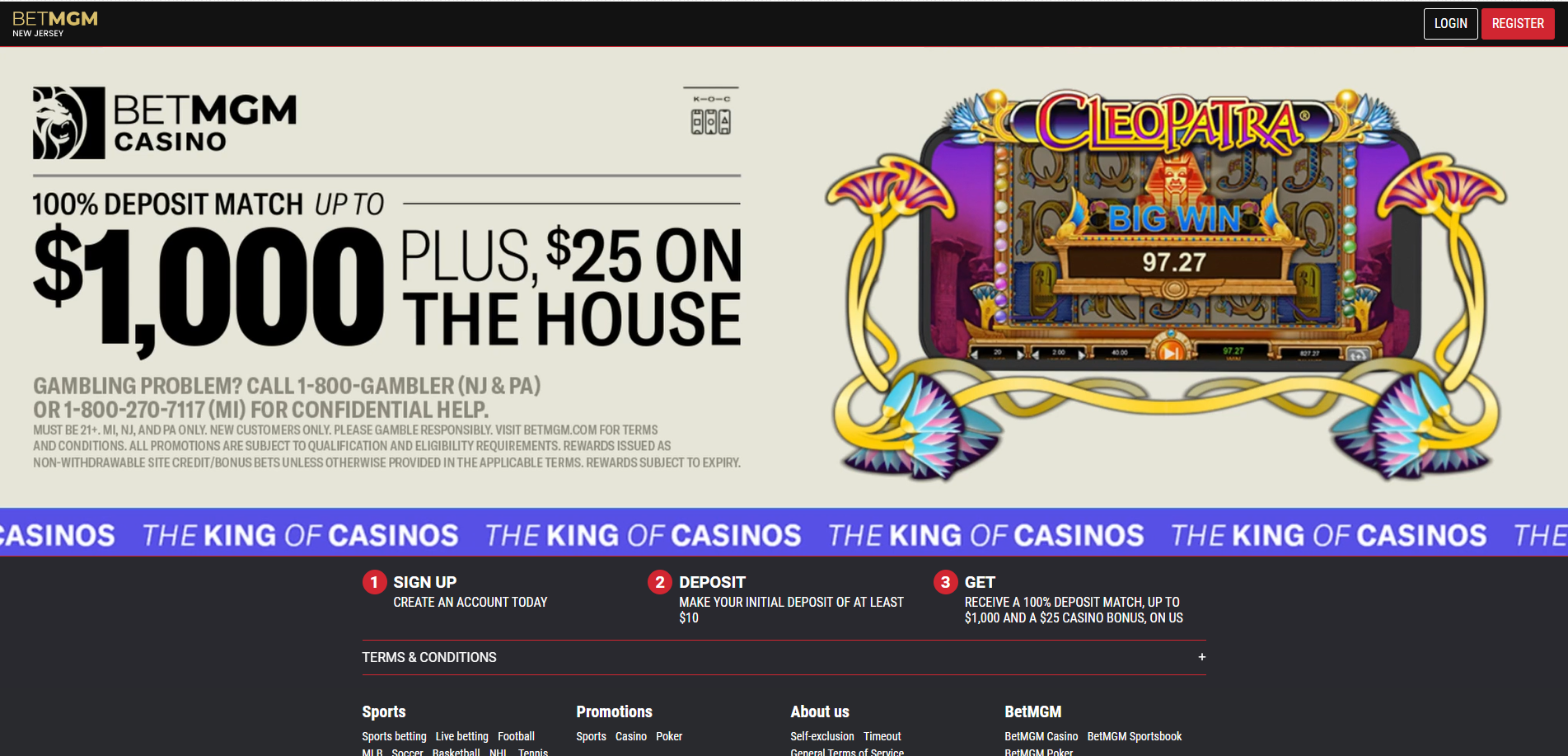
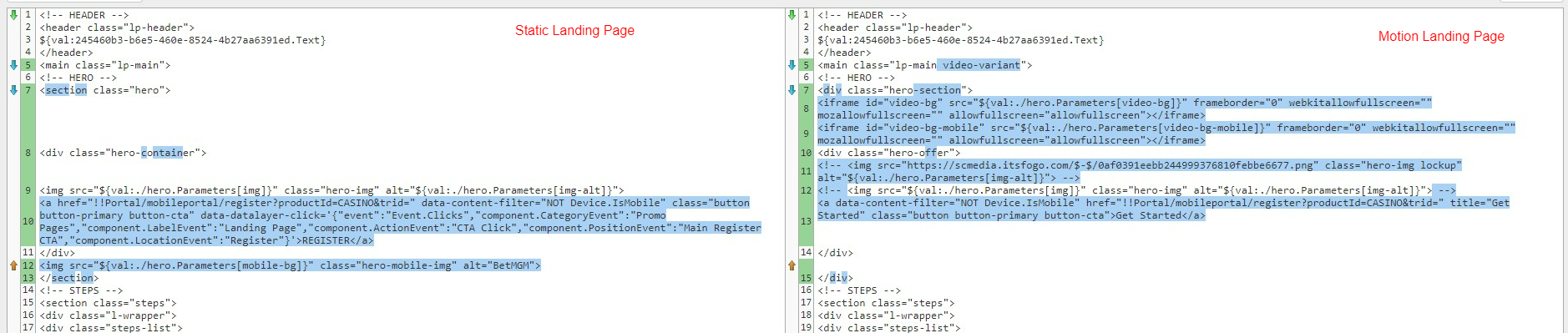
There are two (2) types of Landing Page: Static Landing Page, and Motion Landing Page. The Latter requires video assets which needs to be uploaded in vimeo, as sitecore only needs the URL of the motion asset.
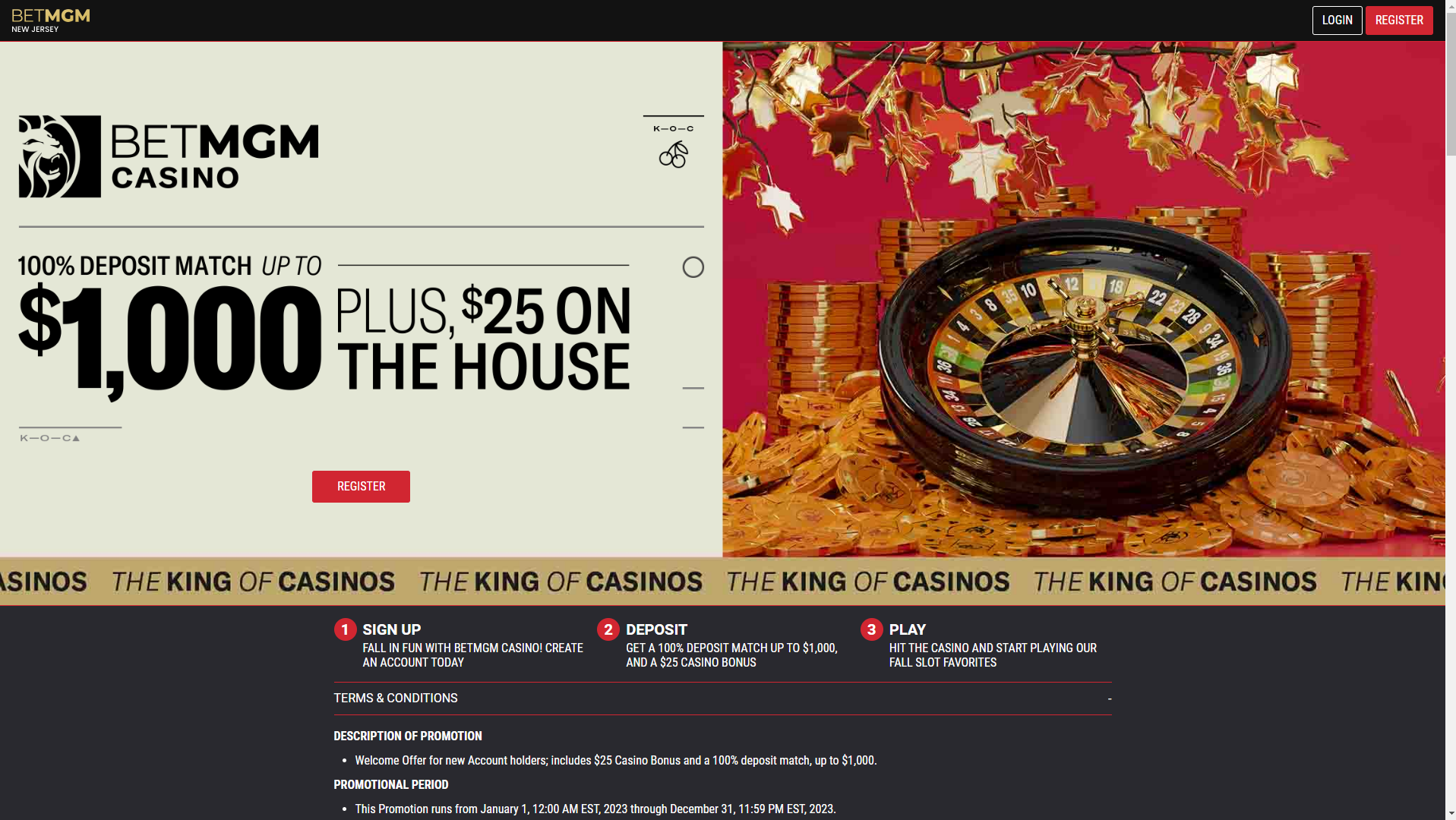
Sample Static Landing Page
Sample Motion Landing Page
Start Building...
To Build a Landing Page, go to its respective path as seen in the beginning of the page. And duplicate the PromoSimpleContent (file) you need. For Static LP, look for PromoSimpleContent that has this content (refer to image below):
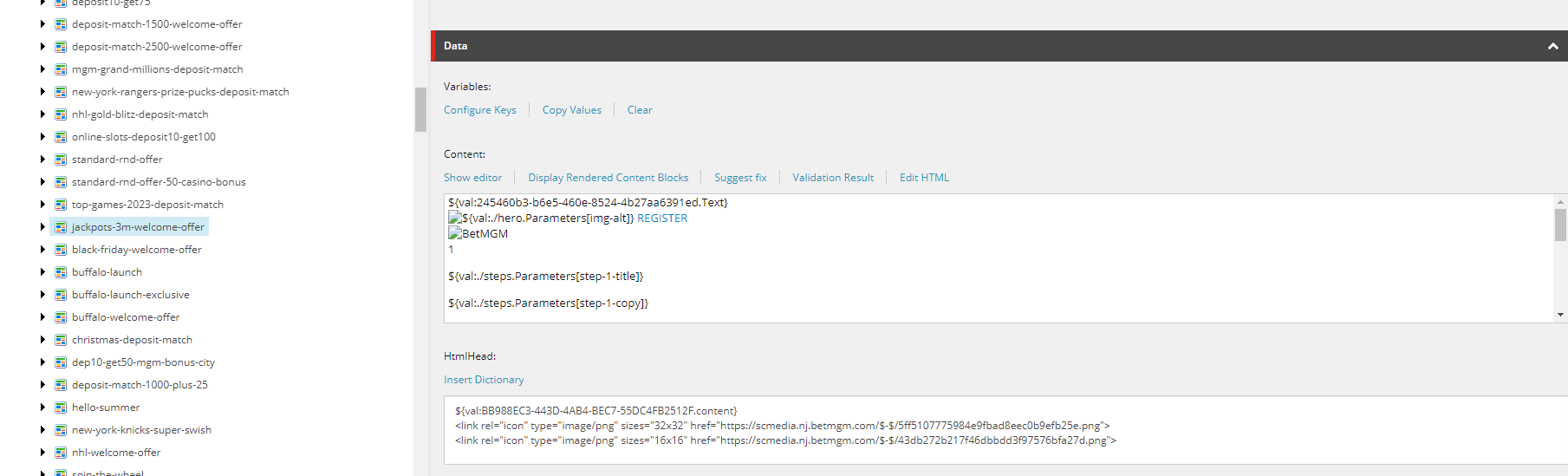
For the Motion LP, look for this:
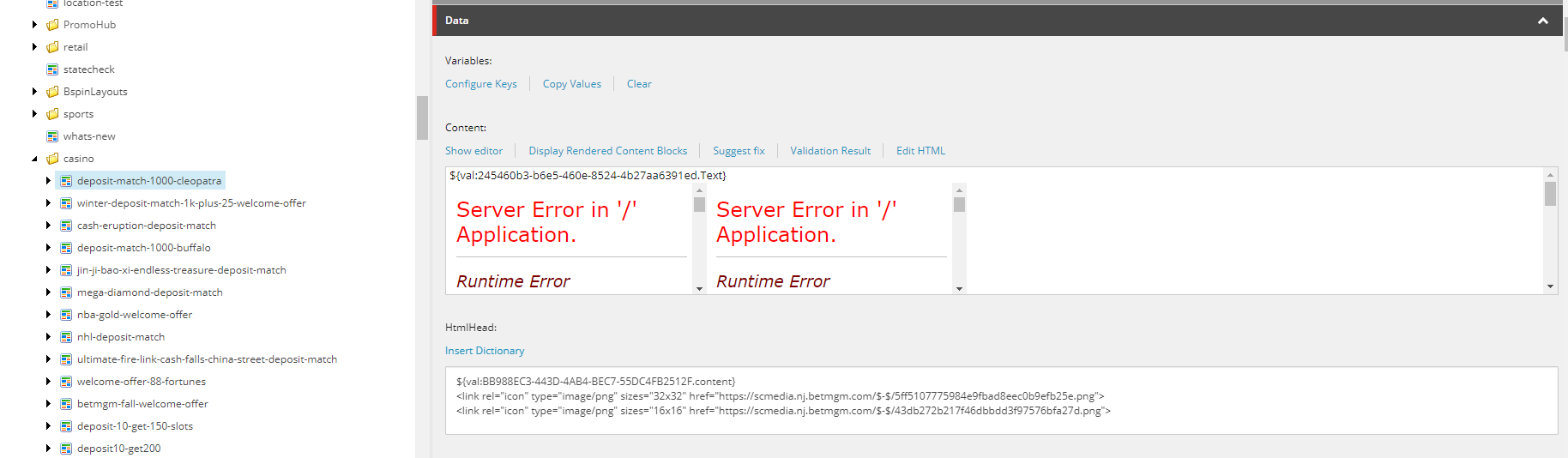
As there are a different Code for these LP, as seen below:
CTA
This section is where you can see how to update the CTA in the Landing Page.
Under the Content Section click Edit HTML
In the HTML Editor edit the href in the <a> tag with the appropriate Smartlink for the CTA and CTA Text.
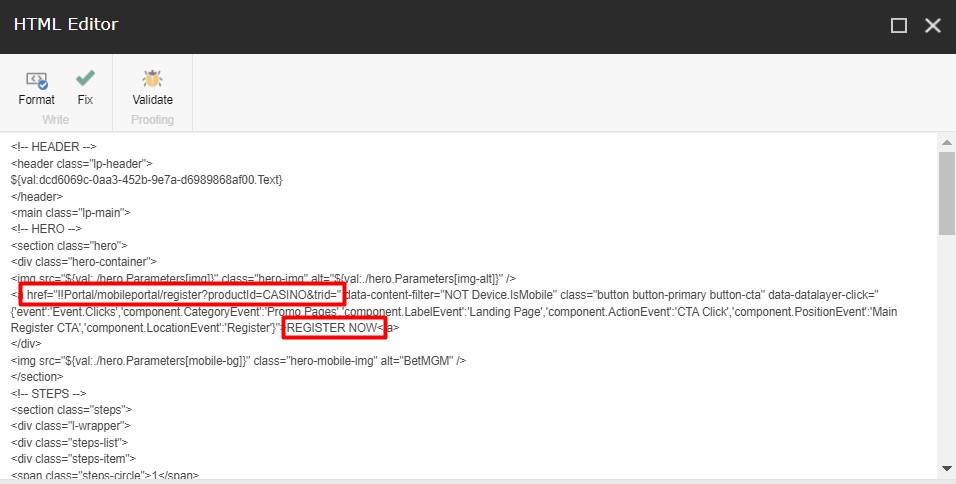
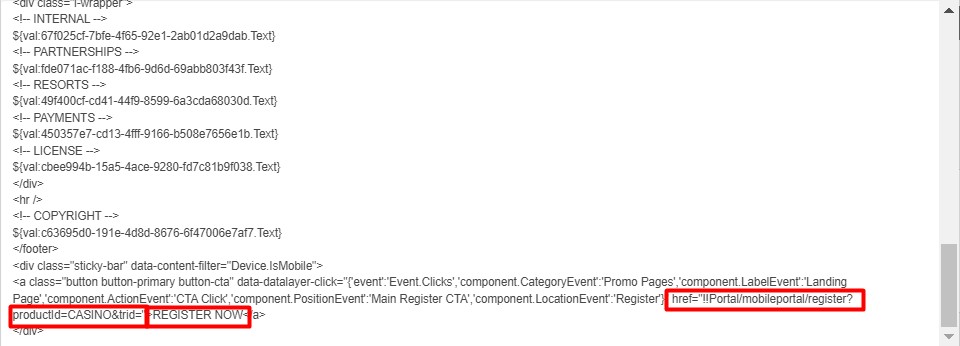
There is an update of using 'REGISTER' or 'SIGN UP NOW' as the CTA Text for Landing Pages, which should be replaced with 'SIGN UP' when creating new Landing Pages.
Script Footer
Add this script at the ScriptFooter field inside the parent component of the landing page.
<script>
(self.dataLayer || (window.dataLayer = [])).push({
  event: 'pageView',
  'page.name': self.location.pathname.replace(/^\/([a-zA-z\-]+)\/promo\//, '')
});
</script>
Hero
In this section, you'll edit all images the Landing Page requires. First, you'll need the image URL.
Static LP Hero
Key | Description |
bg | asset with 2048x800 size |
img | asset with 1080x515 size, or the PNG image that includes the brand logo, promo image, and promo details |
img-alt | You can use the H1 & H2 from the Copy |
mobile-bg | asset with 1080x1080 size |
Motion LP Hero
Key | Description |
bg | still image with 2228x720 size, with promo details (as seen in the sample). |
mobile-bg | still image with 1080x1080 size, with promo details (as seen in the sample) |
video-bg | vimeo link with size 2228x720 then add |
video-bg-mobile | vimeo link with size 1080x1080 then add |
To get the image URL go to your creatives, click the asset you need, then go to media and click Open. It will open a new tab showing the asset copy the URL of the image (refer to image below). As for the vimeo link, it is usually given on your Task on Monday else get it from your sub-lead.
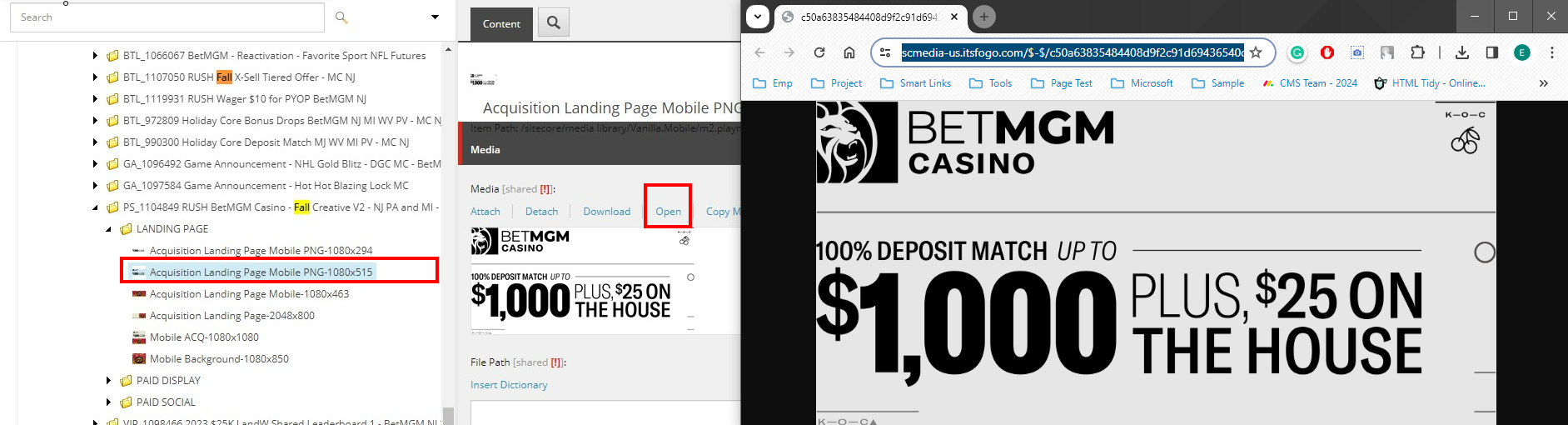
Then you'll paste the URL on its respective key:
Static LP Hero
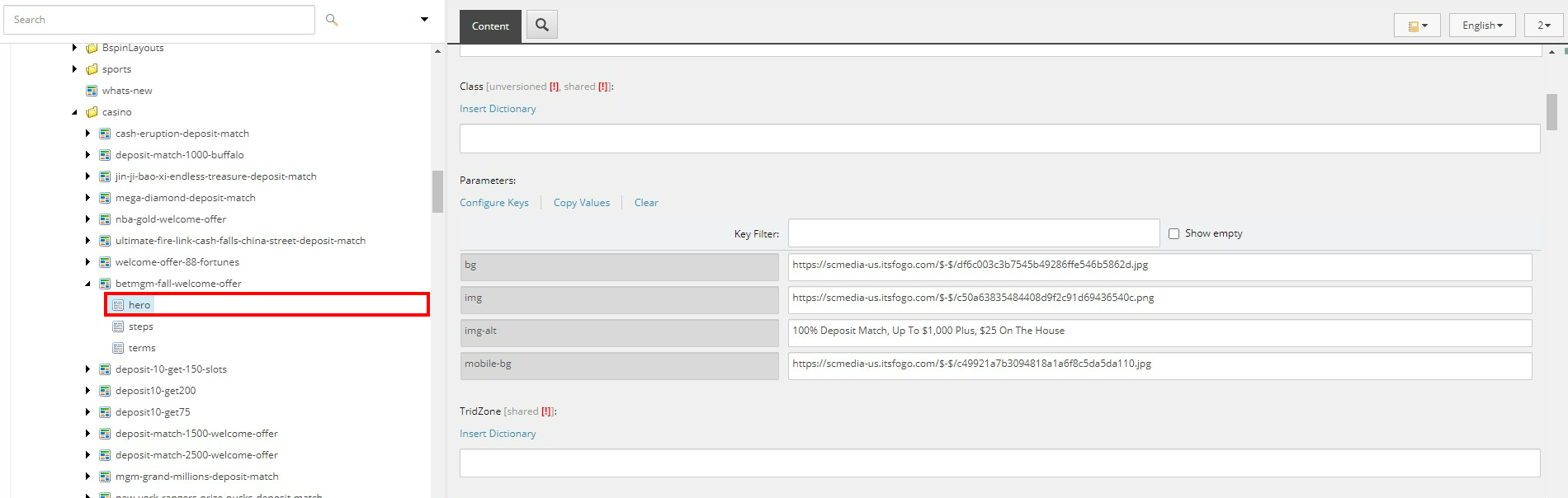
Motion LP Hero
In case the video-bg, video-bg-mobile are not in the Hero. You can manually add it by Clicking the Configure Keys then add these missing keys.
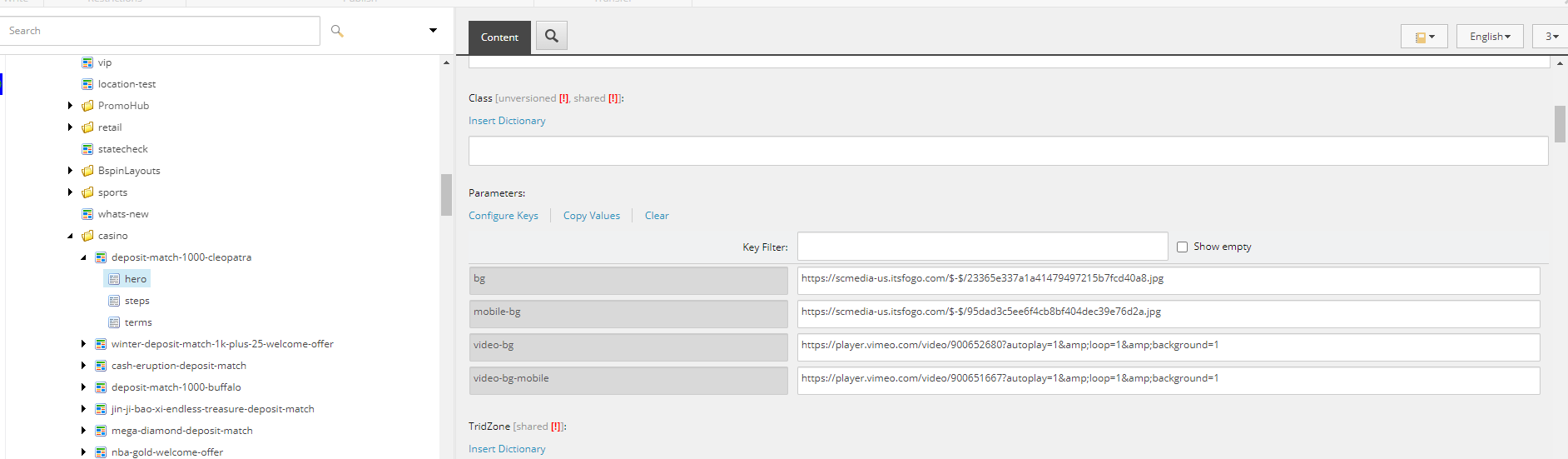
For the Next Steps (Steps, and Terms) both Static and Motion have the same format/process.
Steps
Here, you'll insert the Steps [ACQ 1-2-3] from the Copy.
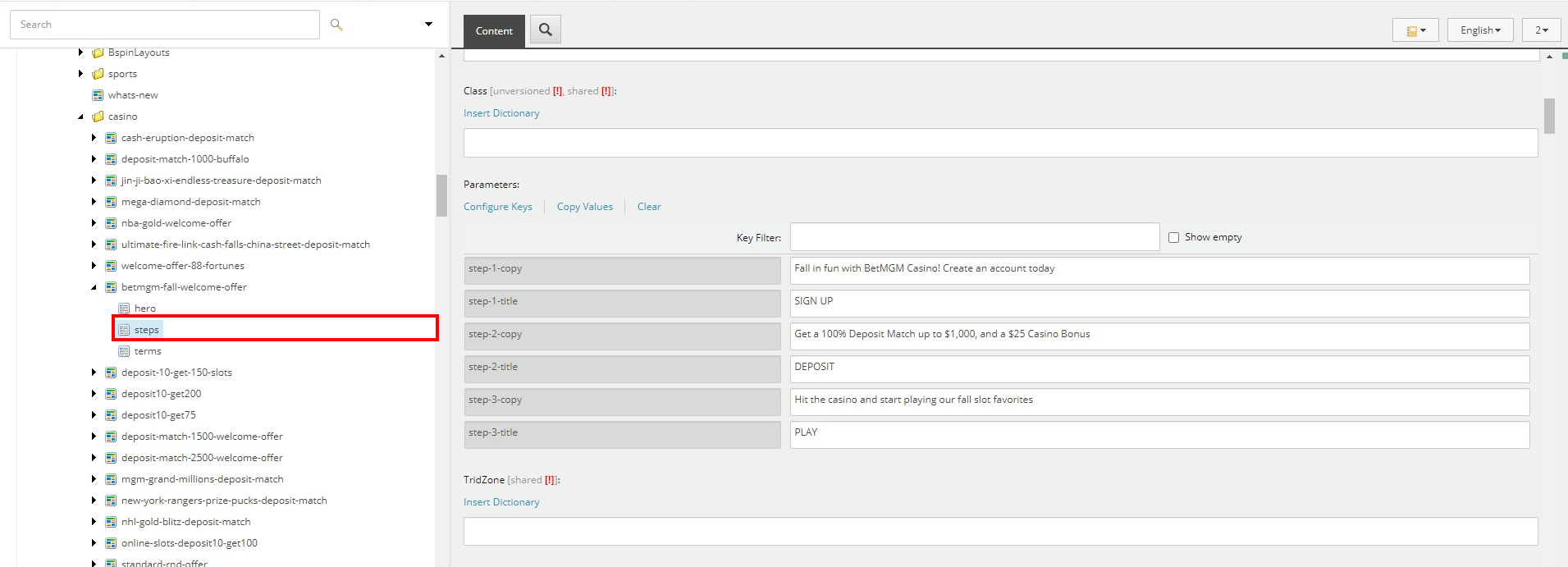
⚠️Take Note: Steps should not have any punctation marks at the end, except Exclamation Point.
Terms
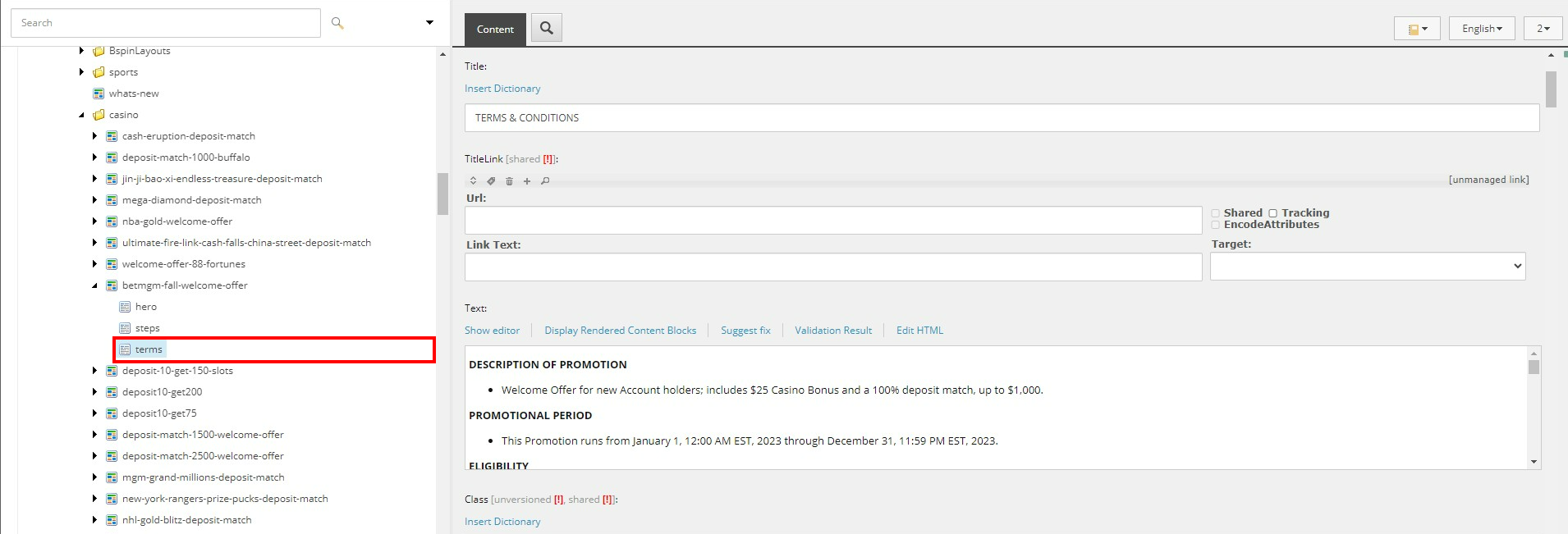
This section is where you'll insert the Terms & Condition of the Promotion. Please mind that in the Landing Page, Titles are in UPPERCASE, No Colon, and if its under sports instead of bullet it should be numbers.
Casino
Sports