MPP
The MPP is the Promo Landing Page contains the description of the promotion, and on how to join for the customers.
Creating The MPP
Navigate to the MPP directory:
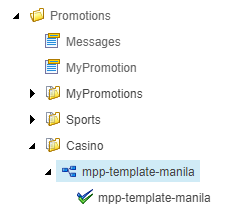
Content > Vanilla.Mobile > State/Brand > MobilePortal-v1.0 > Promotions > Casino
Duplicate the mpp-template-manila and then rename it to your url. Also rename the child component with your url.
The URL should not have special characters such as #, $, %, ! and all URLs should be in lowercase in SiteCore components.
For Tiered Promotions don't use URLs with "high core", " low core" "VIP core" etc. Instead, use numbers
For Example:
- Low Core = 1
- Mid Core = 2
- High Core = 3
- Low VIP = 4
- High VIP = 5
URL:
- roar-to-riches-casino-challenge-low-core ----> roar-to-riches-casino-challenge-1
- roar-to-riches-casino-challenge-mid-core ----> roar-to-riches-casino-challenge-2
- roar-to-riches-casino-challenge-high-core ----> roar-to-riches-casino-challenge-3
- roar-to-riches-casino-challenge-low-vip ----> roar-to-riches-casino-challenge-4
- roar-to-riches-casino-challenge-high-vip ----> roar-to-riches-casino-challenge-5
Parent MPP
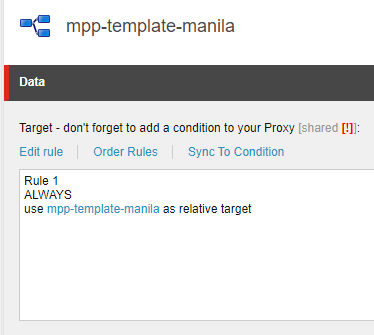
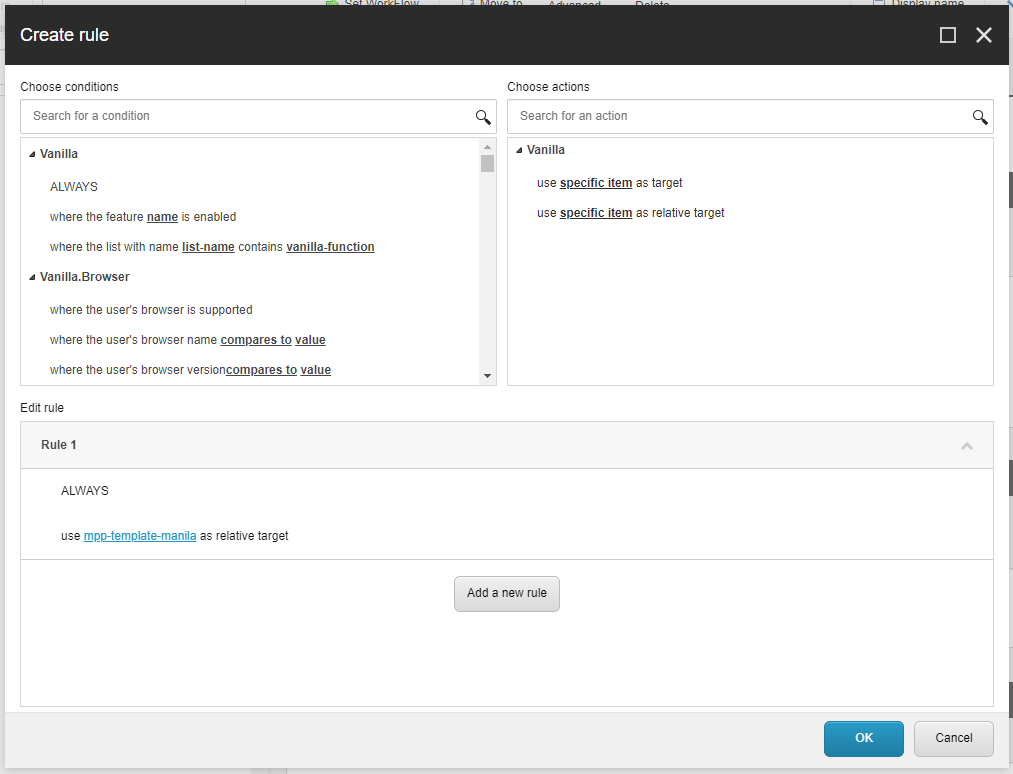
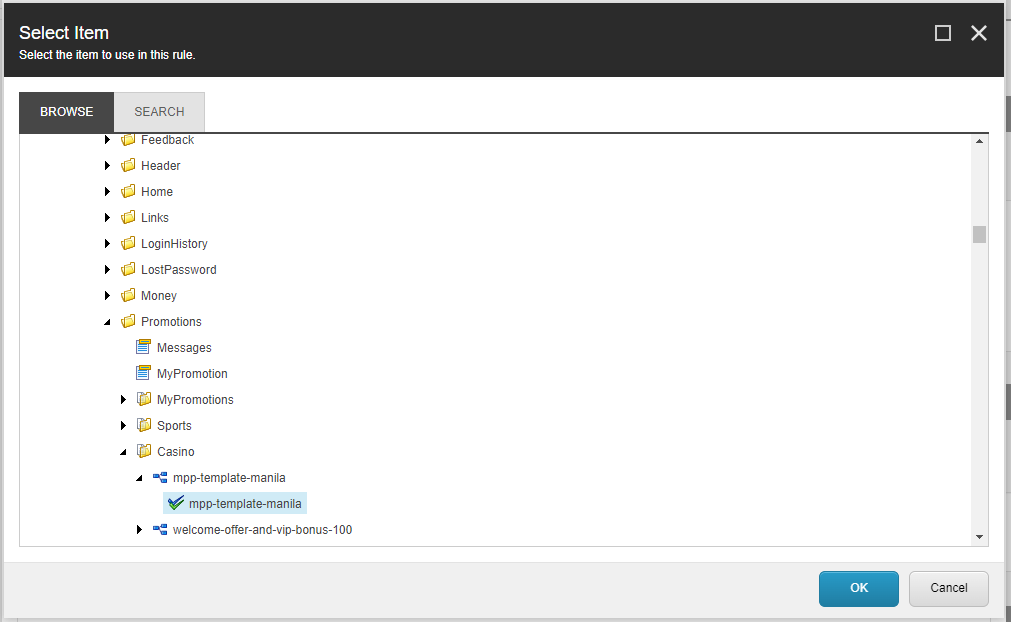
Click on "Edit rule", it opens the "Create Rule" box. Click on the highlighted text and it will open another box. Browse to your MPP's child and select it, then press OK. And Save.
Below is the step by step illustration of what you'll see when navigating.
Child MPP
Fill the required fields as instructed.
Required Fields
Field | Value |
|---|---|
PromotionTitle | Promohub H1 |
Image | Media URL link |
DetailedDescription | Promo Description |
Terms And Conditions | TnCs |
- Use "&" when the title refers to an official Promotion name (to match Terms & Conditions, Copy, and Creative).
- Use "And" when it's purely stylistic, especially on PartyCasino or WoF carousels where "&" doesn't look as good.
- Previous iOS issues with rendering special characters have been resolved, and "&" has generally been safe to use.
- Continue site-checking, and switch back to "And" if we encounter any issues.
DetailedDescription
Click the "Edit HTML" to open the HTML Editor.
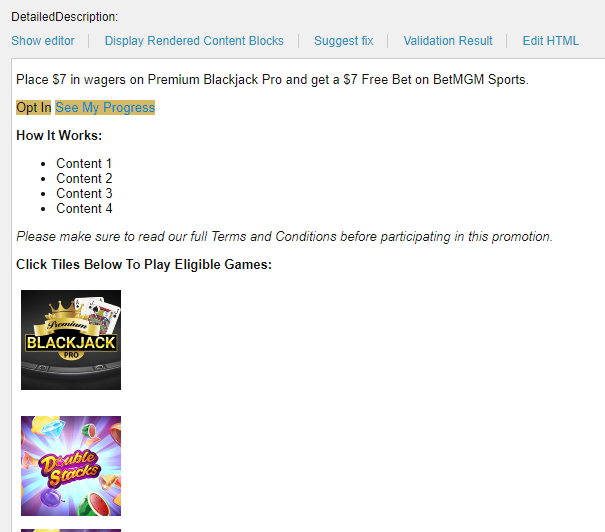
First <p> tag, replace the text with the Promotion Description.
Second <p> tag, CTA will depend on the ticket.
For tickets that require an Opt-In CTA here is a sample of the updated CTA format to use.
Brand & Product | Format |
|---|---|
BetMGM Casino, Party Casino & WoF | |
Borgata Casino | |
For Leaderboards and Sweepstakes that have only One Promotional Period:
Label | CTA | Smartlink |
|---|---|---|
BetMGM | See Rankings | !!M2.Promo/lbpromo/PAT_ID |
Other Labels | SEE RANKINGS | !!M2.Promo/lb/PAT_ID |
For Leaderboards and Sweepstakes that have Multiple Promotional Periods:
Label | CTA | Smartlink |
|---|---|---|
BetMGM | See Rankings | !!M2.Promo/offers/grouped?filter=cp |
Other Labels | SEE RANKINGS | !!M2.Promo/offers/grouped?filter=cp |
Check CTA Docs Page for an exhaustive list of options.
How It Works
Place each content of the How To Participate in the T&Cs. Make sure they are enclosed in <ul> <li> tags. Refer to Documents Page for additional information.
Eligible Games
Go to Game Tiles section for a detailed guide.
Terms And Conditions
Check the Cleaning Documents page for a thorough guide on how to clean the TnCs copy.