PAT and EDS
PAT and EDS have different use cases but most of the components' fields have some similarities.
At the same time with other use cases often when it is being used with Engagement Tickets there are many fields that are specific with those type of tickets. Please refer to the guides under the PAT and EDS section.
Editing your PAT or EDS
In contrast with other components, the PAT and EDS is provided by the Ops team. We can either get the respective PAT or EDS from the Updates or Project Details tab under the CRM Ops Section of your Workfront ticket.
- Updates Tab
- Project Details
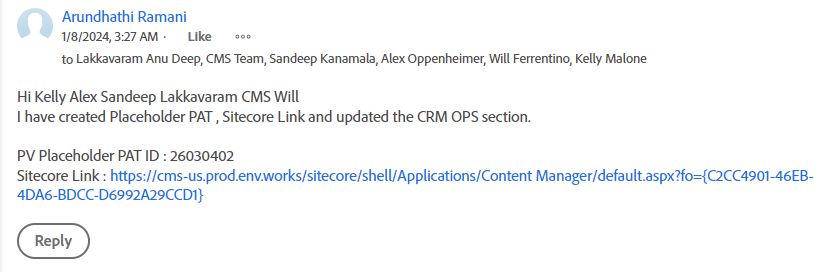

Often times PAT or EDS will be provided in the most bottom part the Updates.
Teaser Image
This section can also called the Promo Hub Tile. For this section image Promohub Tiles-800x360 is consistently used for displaying promo cards on the promo page. The image placement field may vary based on the provided PAT or EDS. Refer to the guide below.
For EDS Rewards TeaserImage [shared [!]]: should be Promohub Reward Tiles-800x360_.
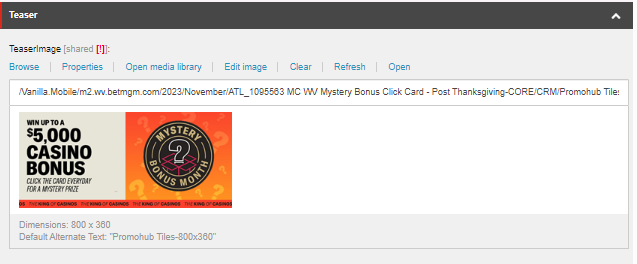
| Promotion Type | Field |
|---|---|
| Bet & Get | Teaser > Teaser Image |
| Click Card | |
| Coin Flip | |
| Spin The Wheel | Promo Hub Tile > Image |
| Pick A Card | Offer > TeaserImage |
Basic Promotion Details
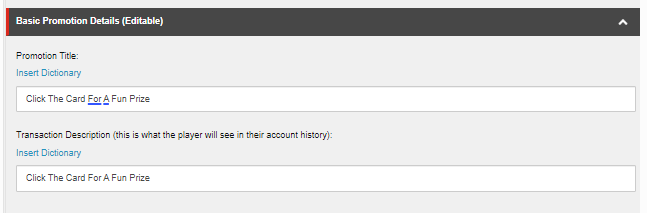
| Promotion Type | Promotion Title | Transaction Description |
|---|---|---|
| Bet & Get | Promohub Key Terms H1 | Promohub Key Terms H1 |
| Click Card | ||
| Coin Flip | TD-{PAT ID} | |
| Spin The Wheel | ||
| Pick A Card | ||
| Pick A Card | EDS-{EDS ID} |
Overview
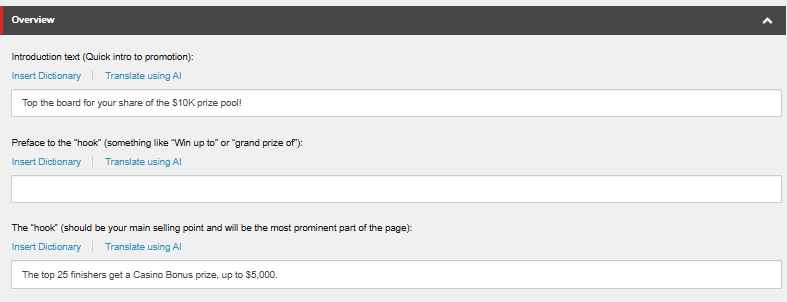
Required Fields
| Field | Value |
|---|---|
| Introduction Text | Promo Teaser Section |
| The “hook” | Prize Message |
Optional Fields
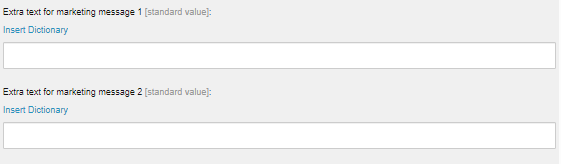
There are 2 reserved text fields if there are any more copy provided after the Prize Message content in the copy, put the line on each of the text fields if there is any.
Image
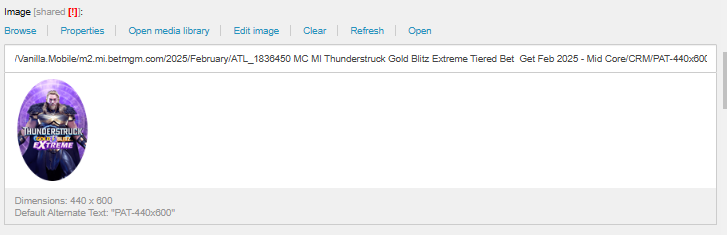
Place the Promohub Tiles-800x360 Image in this part.
HowItWorks
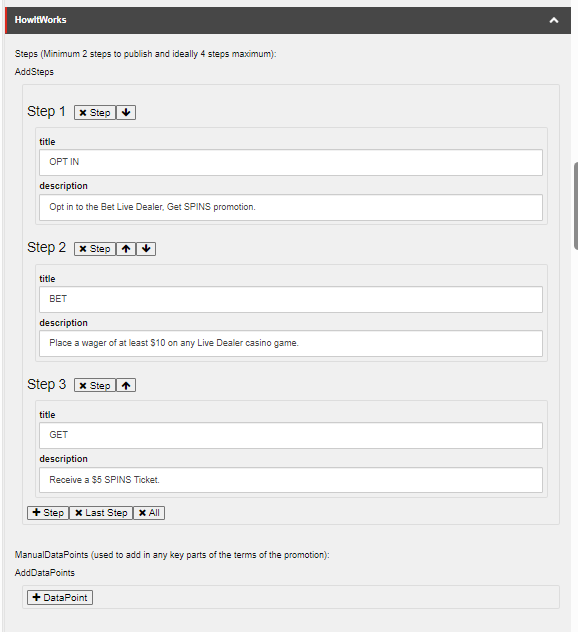
This section contains 3 steps that summarizes how the players can join and receive their rewards.
The copy has the How It Works Tab section which contains the value for each step. Place the bolded text for the title and below each are the description.
Leaderboard Promotion
If the ticket is a Leaderboard Promotion, there is a slight change in the inputs in the How It Works Tab. Instead of the bolded text for the title, it will be replaced with SVG items. Below is the sample Leaderboard PAT promotion.
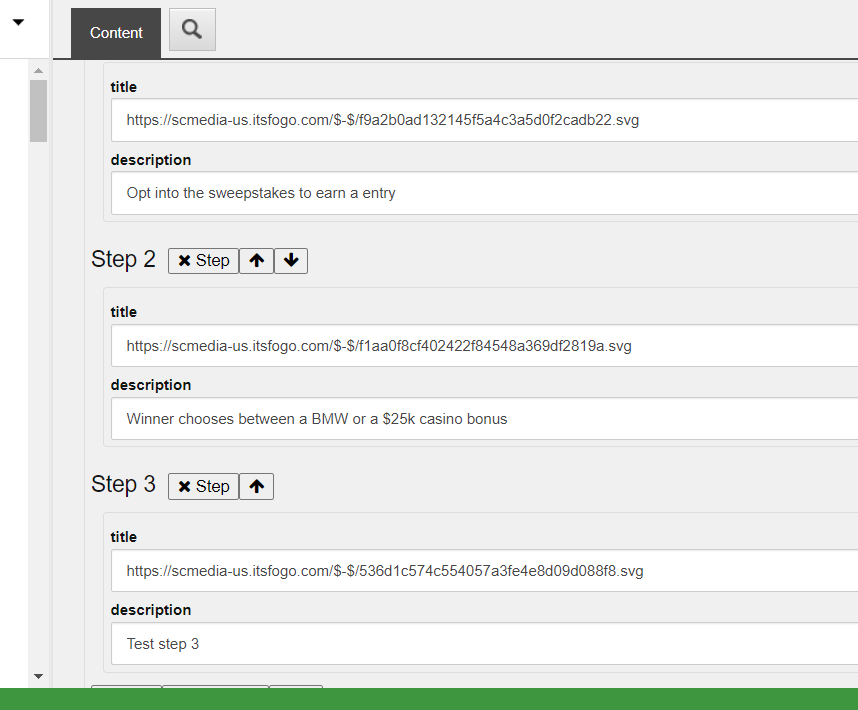
Make sure to use the Gift Box Icon in the Last Step of the How It Works Section.
If the ManualDataPoints have any fields displayed, delete or remove all fields that are displayed.
MyProgress
The first field CarouselBackGroundImage will have the asset of 1210x440.
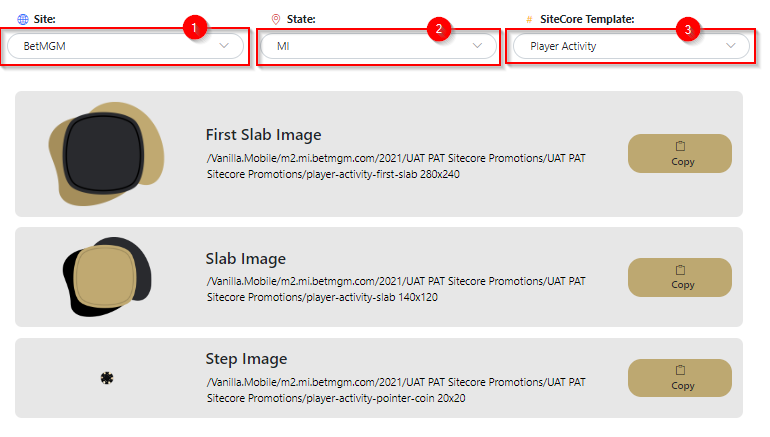
The value for the remaining fields of FirstSlabImage, SlabImage, and StepImage can be acquired from the UAT Images Tool, just select the appropriate Site, State, and SiteCore Template to get the appropriate images for each field
Terms
KeyTermsAndConditions
The value for this field will be from the Promo Hub Key Terms > Short Summary from the copy.
Enclose this content with the <p></p> tag
Full Terms and Conditions
If the Terms have mentioned for games that must be wagered, the tiles for these games will also be included at the top of the Terms and Conditions.
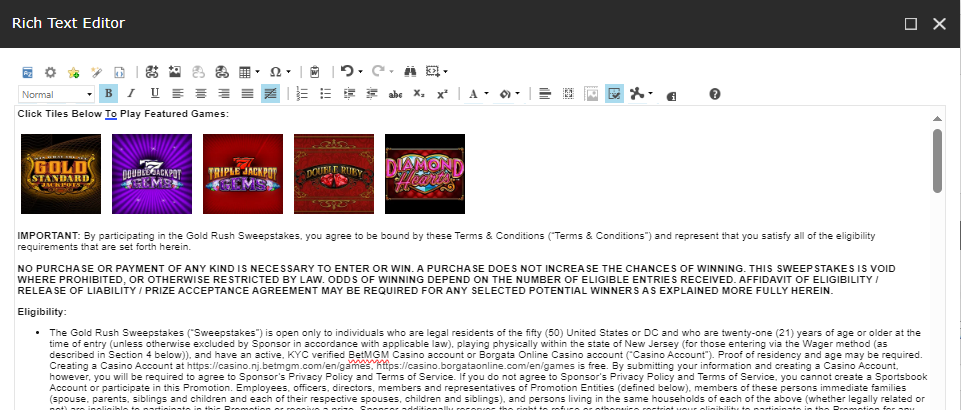
The content for the Terms and Codition will be the same for the content from MPP or Rest ID, so feel free to just copy and paste the content from those components. For a reference please refer to this guide.
If Promotion is SHARED Leaderboard on Multiple states (e.g., NJ, PA, MI, ON, WV): Do not add game tiles to PAT T&Cs because the game links vary between states.
If Promotion is SHARED Leaderboard on same state (e.g., BC NJ, MC NJ, PC NJ): You can add the game tile, but double-check that the game links are identical.
CTA
For CTA it can be different fields and different contents, refer to the guide below.
| Promotion Type | Section | CTA URL | CTA Text |
|---|---|---|---|
| Bet & Get | Play Now CTA | Play Now | See Bet & Get CTA Guide |
| Click Card | | ||
| Coin Flip | CTA | Flip Now or Toss Now | |
| Spin The Wheel | No CTA Needed | ||
| Pick A Card | |||
Bet and Get CTA
For Bet & Get, the CTA URL will be depending on the eligible games for the promotion.
| Eligible Game | CTA URL | CTA Text |
| Single Game | | Play Now |
| Multiple Games | | |
| Game is not yet live | |
Share PAT CTA Configuration
If the promotion is a Shared PAT there's an additional step we need to take.
Firstly !!M2.CasinoHome/c/newgames will be the default CTA if it is a Shared Promotion.
Click on the dropdown arrow to show the advanced view of the CTA configuration.
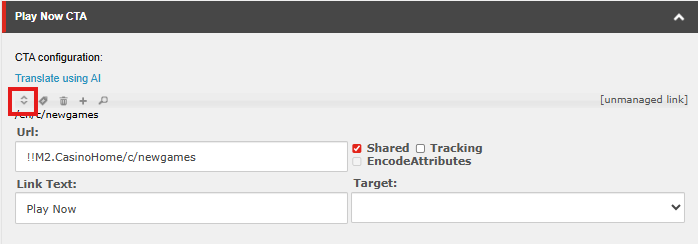
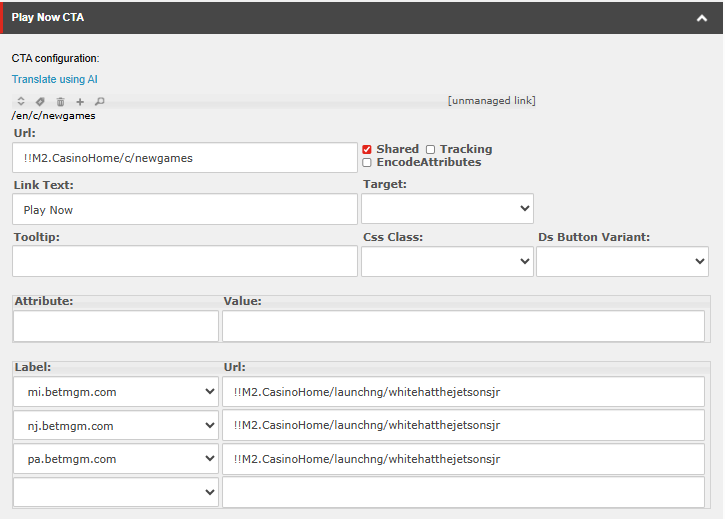
Search for the label that is included in your promotion using the dropdown and search for its corresponding game link, and paste it in the URL field.
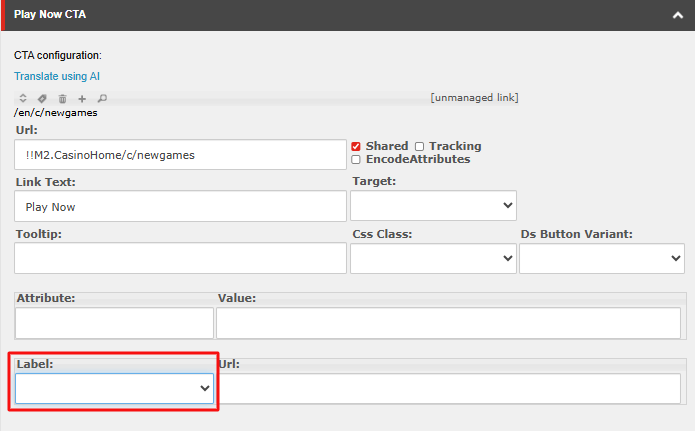
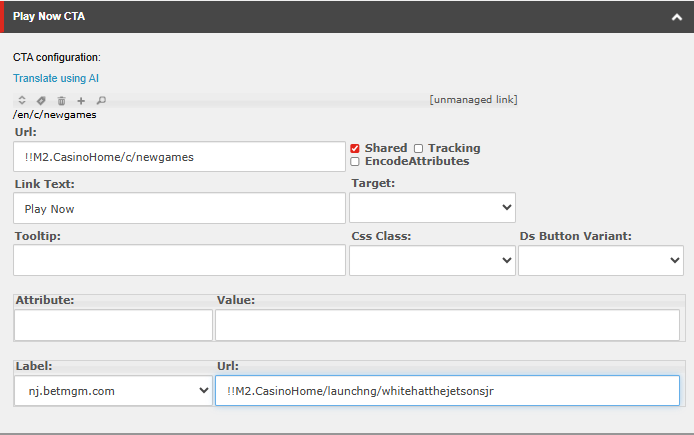
If the PAT is shared across multiple states, you can add more rows in the label simply by saving the PAT; it will automatically add another row to the Label.
Rewards and Results options
This field is a dropdown where we need to select the appropriate folder depending on promotion type of your ticket.
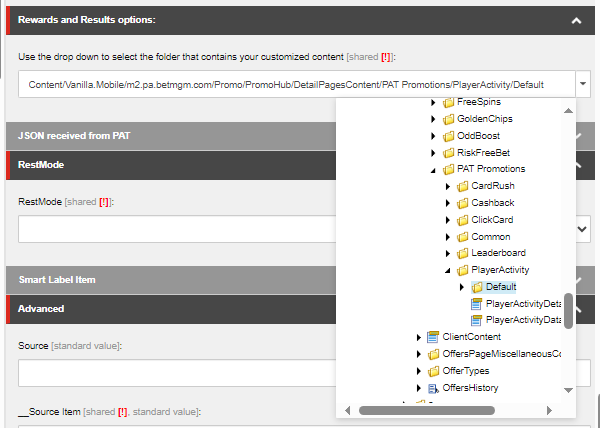
The appropriate folder will be under the DetailPagesContent folder inside the state/brand folder. The state/brand should be the same as stated in your ticket. Here is the path to DetailPagesContent
Content > Vanilla.Mobile > State/Brand > Promo > PromoHub > DetailPagesContent
There are always two final folder destination to select, those are Default and Default-US, only pick Default folder if Default-US is not present.
| Promotion Type | Folder Path |
| Bet & Get | DetailPagesContent > PAT Promotions > Player Activity > Default-US | Default |
| EDS | DetailPagesContent > Eds > Default-US | Default |
| Click Card | DetailPagesContent > PAT Promotions > Click Card > Default-US | Default |
| Leaderboard | DetailPagesContent > PAT Promotions > Leaderboard > Default-US | Default |
| Shared Leaderboard | Content/Vanilla.Mobile/m2.borgataonline.com/Promo/PromoHub/DetailPagesContent/PAT Promotions/Leaderboard/Leaderboard_Shared_NJ_Labels |
Shared Leaderboard
For Shared Leaderboard tickets, the state/brand folder should always be set to m2.borgataonline.com, as the Leaderboard_Shared_NJ_Labels folder is located there, regardless of the state.
Engagement PATs
When you're working on an engagement ticket, you'll notice some fields in the PAT and/or EDS components that are not present in BAU tickets.
See the guides this page below to learn how PAT and EDS components for engagement tickets are different from BAU tickets, and what you should put in these fields.