Spin The Wheel
- Prize Tool - You'll find this in the Documents section of your ticket's Workfront.
- Wheel Image and Icons - Look for the
STW Assetsfolder in the ticket's creatives.
Unlike BAU PATs, STW PATs have no Overview, MyProgress, and Rewards sections. The dedicated HowItWorks section is also moved as a single text input field under the Terms section. Last but not least is the WheelsSection which is unique to STW PATs.
Let's go through each of the sections one by one.
Promo Hub Tile
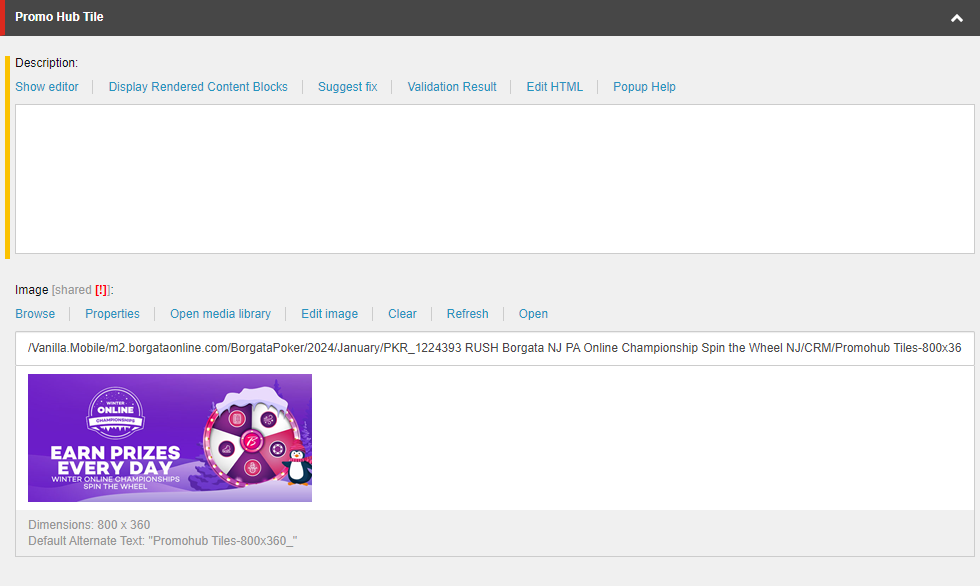
The Teaser section in BAU PATs is replaced by the Promo Hub Tile section in engagement PATs. Place the Promohub Tile image (hint: the one with the text) on the Image field. In the Description field, place an empty <p></p> tag.
Details
Sitecore Preview
WheelSections
This is the defining section of STW PATs. As the name suggests, this is where we'll place the images and prize copy for each section of the game wheel.
Here's the Sitecore preview:
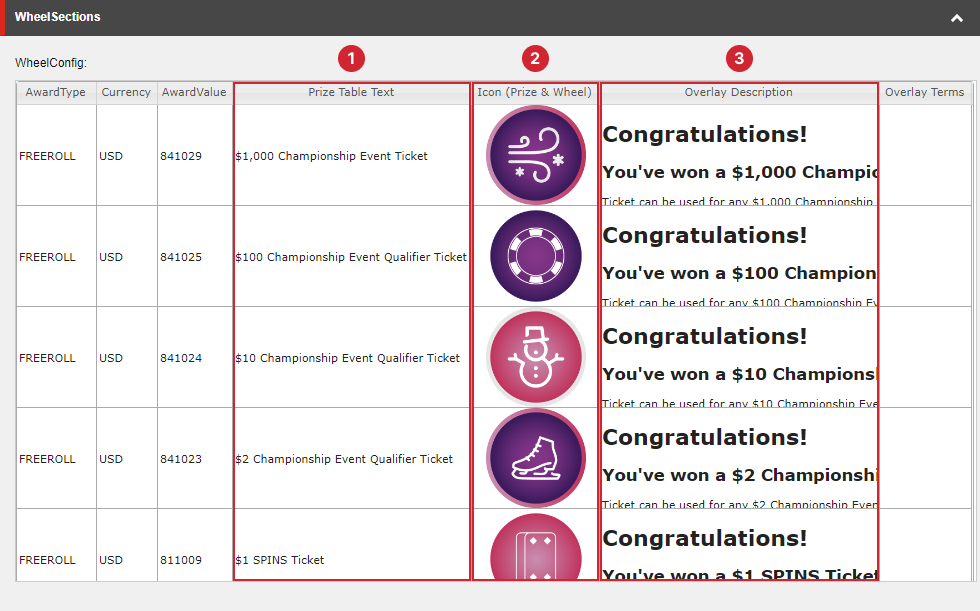
Each row represents a prize that corresponds to a section of the game wheel. The columns are the fields of each prize. We only need to update the columns highlighted in the screenshot above.
- Prize Table Text - This refers to the prize name.
- Icon (Prize & Wheel) - This refers to the prize icon for each section of the wheel.
- Overlay Description - This refers to the prize message, which appears as an overlay after the user spins the wheel and lands on the corresponding icon.
Adding the Prize Copy (columns 1 and 3)
Download and open the Prize Tool. This contains the copy you need to fill out the Prize Table Text and Overlay Description columns.
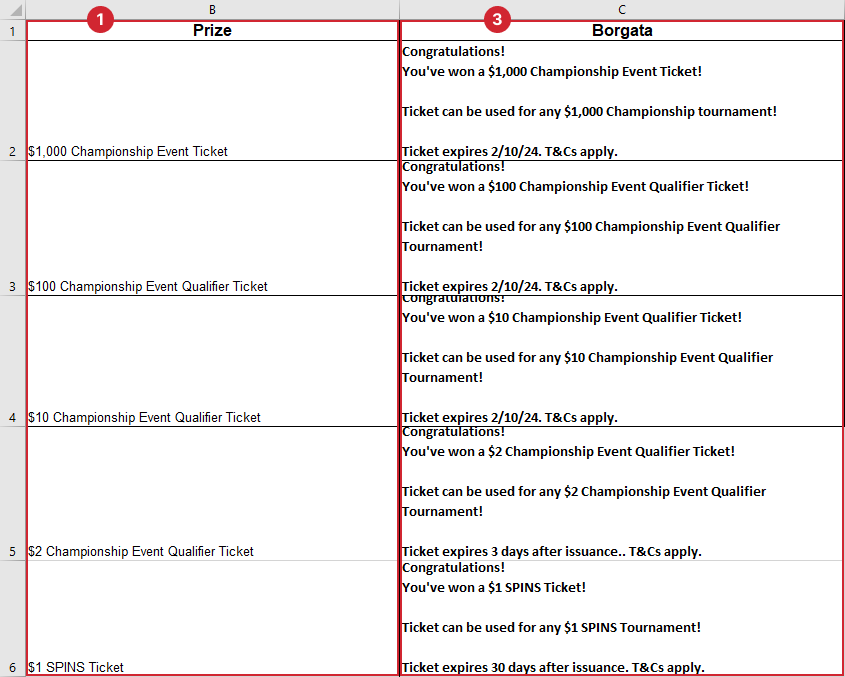
To edit the Prize Table Text, click on the cell you want to edit and paste the corresponding copy from the Prize Tool.
Next is the Overlay Description, which is what the users see after they spin the wheel and land on a certain icon. For example:
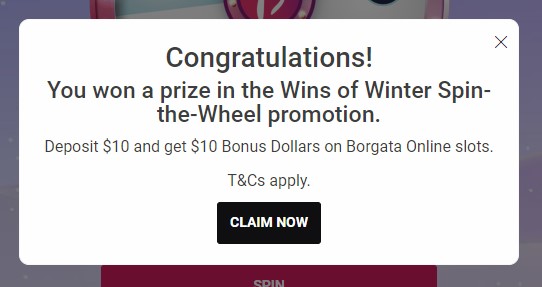
To edit the Overlay Description, follow these steps:
-
Click on the cell you want to edit, then click Show Editor.
-
In the editor that appears, switch to the HTML view by clicking on the HTML tab at the bottom.
-
Copy the following template below and update the highlighted lines with the copy from the Prize Tool.
<div class="overlay-header">
<h1 class="mb-1 mt-0">Congratulations!</h1>
<h2 class="mb-2 mt-1">You've won a $1,000 Championship Event Ticket!</h2>
<p class="mb-2">Ticket can be used for any $1,000 Championship Tournament!</p>
<p class="mb-2">Ticket expires 2/10/24. T&Cs apply.</p>
<div class="mt-2">
<a rel="noopener noreferrer" class="btn btn-primary" href="!!M2.Promo/offers/p/poker">Claim Now</a>
</div>
</div>Make sure to retain the CSS classes and maintain this structure:
- There should be one container div with the
overlay-headerclass. - There should be one
<h1>and<h2>tags, followed by one or more<p>tags. - The last element should be an
<a>tag (the CTA button).
- There should be one container div with the
-
For the CTA, see the CTA guide.
Adding the Wheel Icons (column 2)
You can find the wheel icons in STW Assets > Icons.
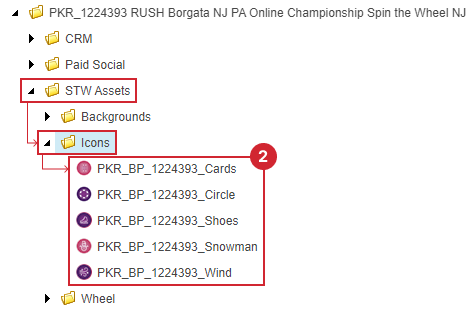
To determine the order of the icons, go to STW Assets > Wheel and look for an image of the wheel with icons. Start at the 12 o'clock mark, and then work your way clockwise. For example:
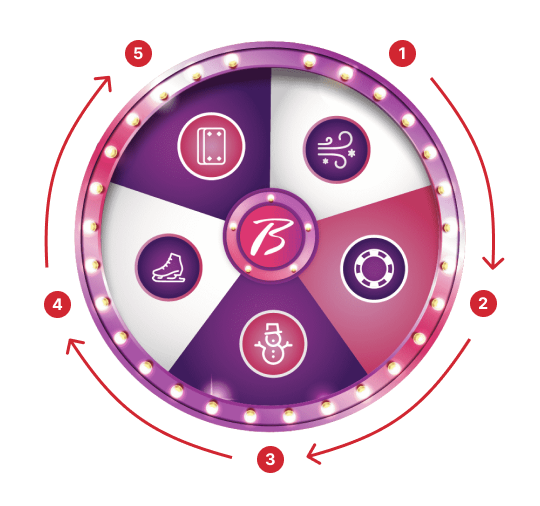
To update the Icon column:
- Click on a cell you want to update, then click Browse.
- In the dialog box that opens, navigate to the directory where you uploaded the creatives for your ticket. Pick the icon you need, and then click Select.
- Repeat until you've updated all the prize icons.
Terms
- Key Terms And Conditions: Use the Promo Hub Key Terms > Summary. Wrap in
<p></p>tags. - Terms And Conditions: Copy the full Terms and Conditions.
- How It Works: Copy the template below and update the highlighted lines with the How It Works copy for that ticket.
<section class="custom-tnc-hiw sk-bingo-container">
<article>
<div class="c-how-to-component">
<div class="c-predictor-message c-box">
<div class="c-how-it-works">
<div class="c-how-it-works-collapsible__body c-display" id="ptb-how-it-works__desc">
<ol>
    <li><strong>PLAY</strong><br />
    Play poker every day to earn 20 Borgata Rewards Points (BRPs).</li>
    <li><strong>SPIN THE WHEEL</strong><br />
    Use your BRPs to claim your daily spin.</li>
    <li><strong>WIN PRIZES</strong><br />
    Receive Tournament Tickets.</li>
</ol>
</div>
</div>
</div>
</div>
</article>
</section>
- Criteria Overlay: Copy the template below:
<div class="overlay-header">
<p>Sorry, you’re not currently eligible for this promotion.</p>
</div>
Page Layout Details
Click on the dropdown, then select the Layout component that you created in a previous step.
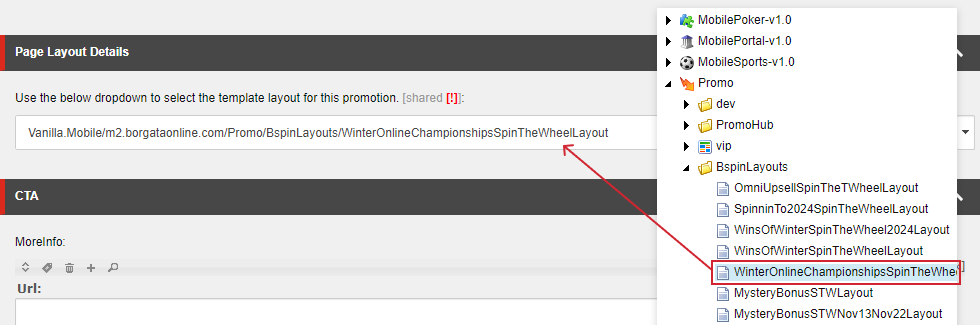
Double check your work, then finalize the component. You're now done filling out the STW PAT!