Pick A Box
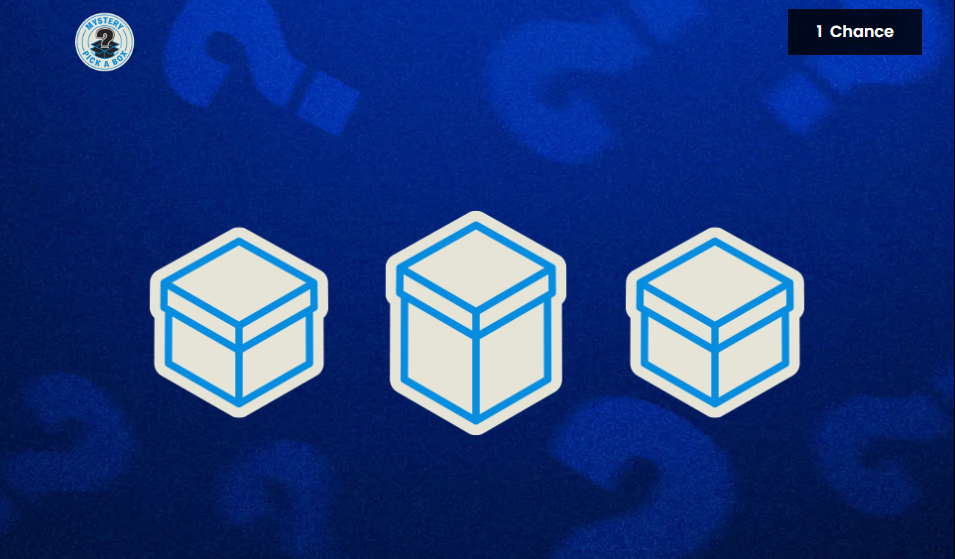
Pick A Box is an Engagement tool for players to play and win prizes.
Assets
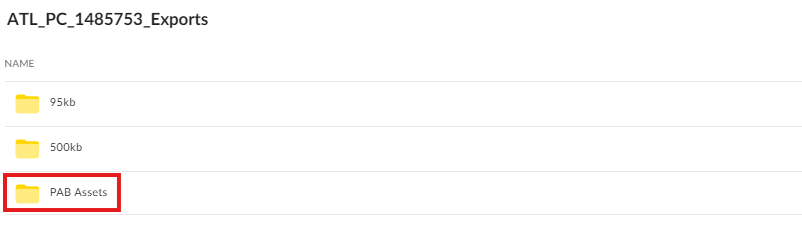
In order to properly build this component, make sure that the Box link contains a directory for the Pick the Box Assets.
Design Concerns
GIFs should be generic with a Generic animation to avoid any issues on the CMS side and to avoid design needing to create new GIFs.
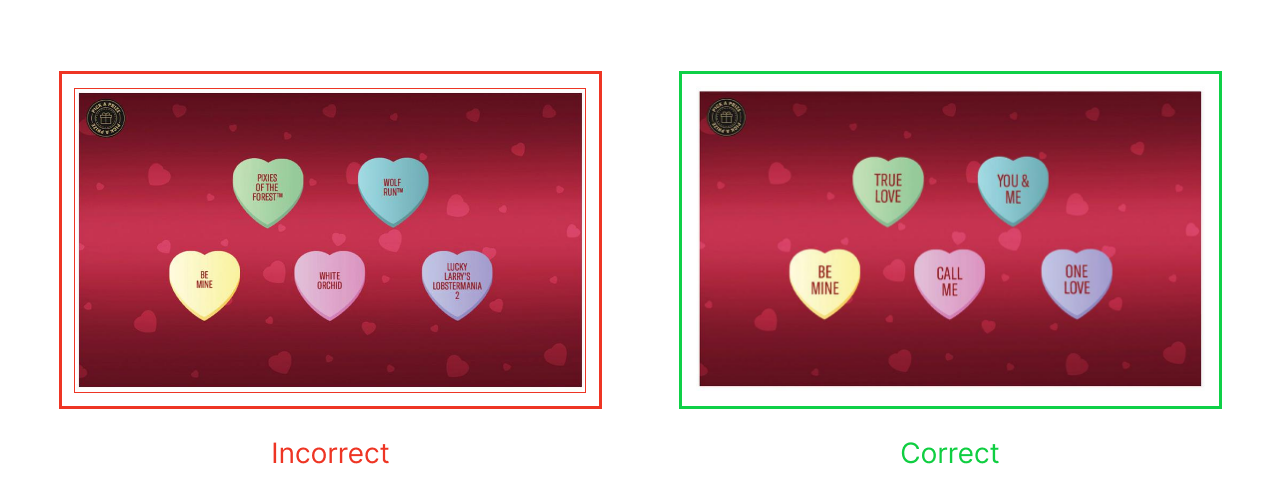
If you found any of theses issues, chat the corresponding leads on the CMS Design Concerns Teams group chat and mention the issue for them to work on.
Building the Component
First, we must build the layout for our PAB Engagement tool.
Layout: Content > Vanilla.Mobile > State/Brand > Promo > Pick A Box
CSS asset: Content > Vanilla.Mobile > State/Brand > Promo > PickaBox > PageAssets
Duplicate any of the Layouts, and rename it like in the existing layouts. You also need to create it's own CSS asset, just duplicate existing css and rename as such.
Content
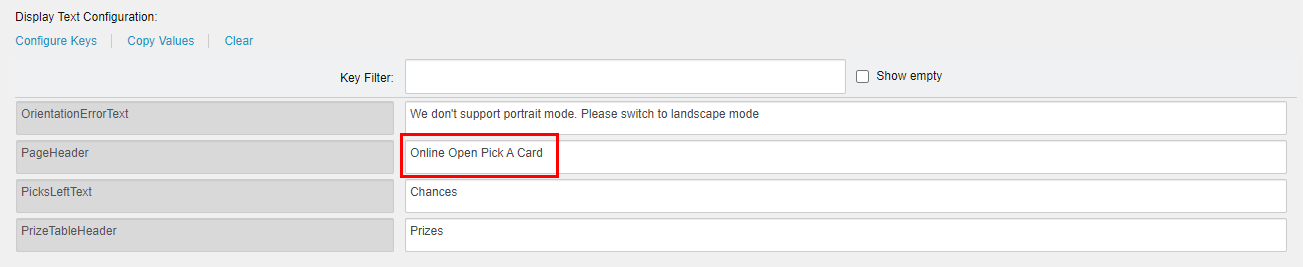
Fill the PageHeaderText with Promohub H1.
Change CTA depending on your ticket if Casino/Poker.
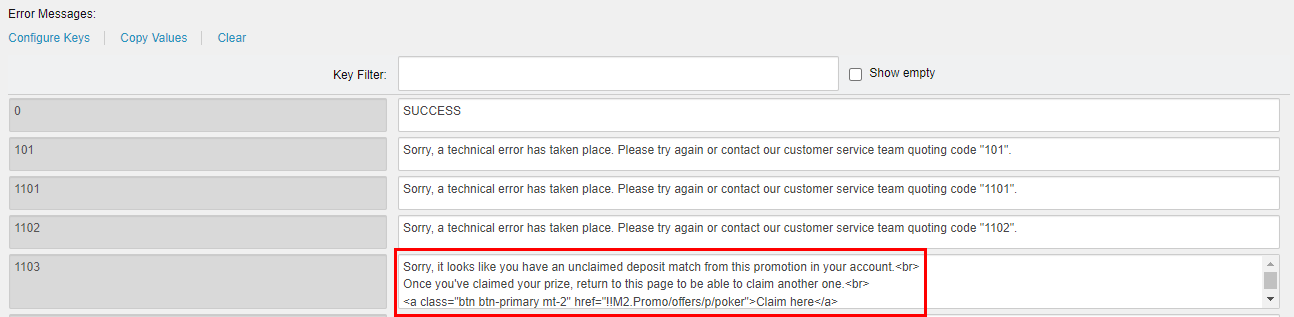
Image Fields
| Field | Value |
|---|---|
| Brand Logo Image | Logo 800x360 |
| Landscape View Background Image | Background 955x562 Desktop |
| Portrait View Background Image | Mobile Background 1920x1080 |
Fill up the image fields listed.
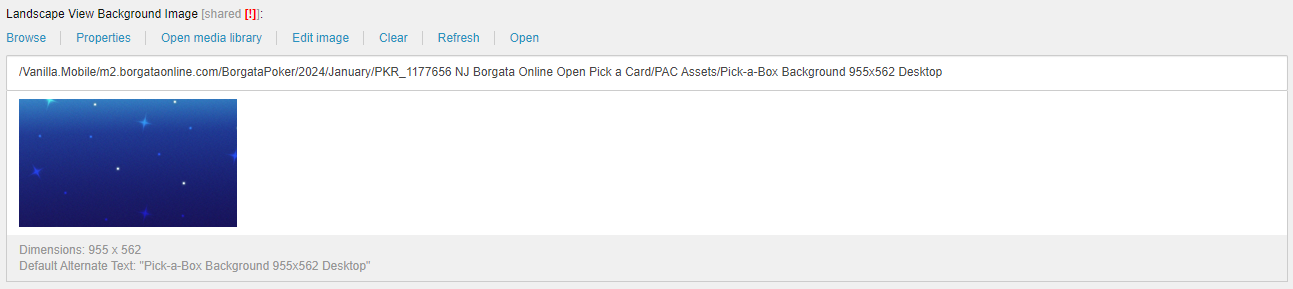
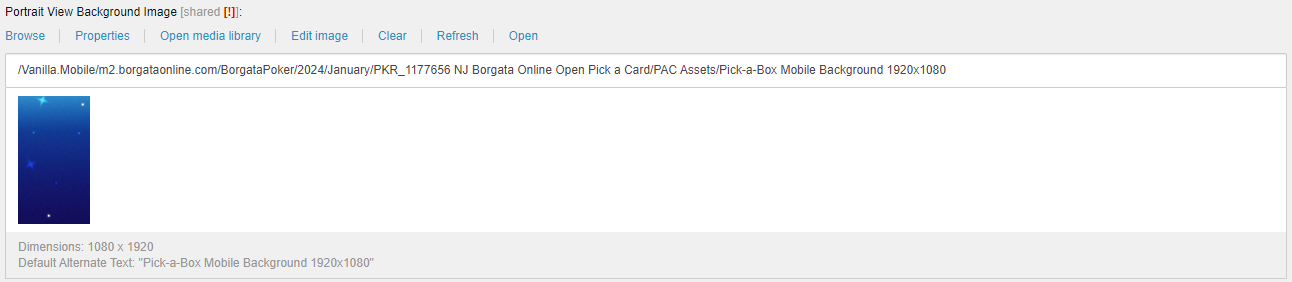
Image Configuration
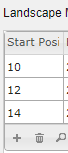
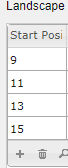
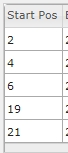
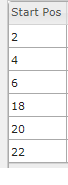
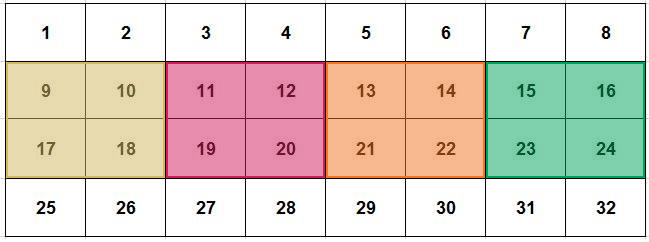
This section lets you configure where the box/card/object of your Pick A Box Engagement tool will be placed.
- Position in the grid guide
- Static image
- GIF image
Follow the arrangement of images in the mock design.
You may also add more entries if needed.


- Landscape
- Portrait
| Number of Box | Configuration |
|---|---|
| 3 | Show/Hide
|
| 4 | Show/Hide
|
| 5 | Show/Hide
|
| 6 | Show/Hide
|
| Number of Box | Configuration |
|---|---|
| 3 | Show/Hide
|
| 4 | Show/Hide
|
| 5 | Show/Hide
|
| 6 | Show/Hide
|
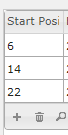
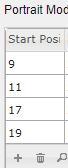
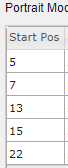
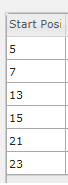
The configuration is dependent on the mock design provided. Use the guide image with numbers inside of boxes.
Landscape Grid Guide:
Portrait Grid Guide:
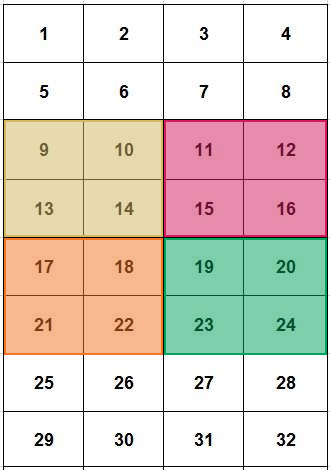
Each box fills 2x2 area in the guide.
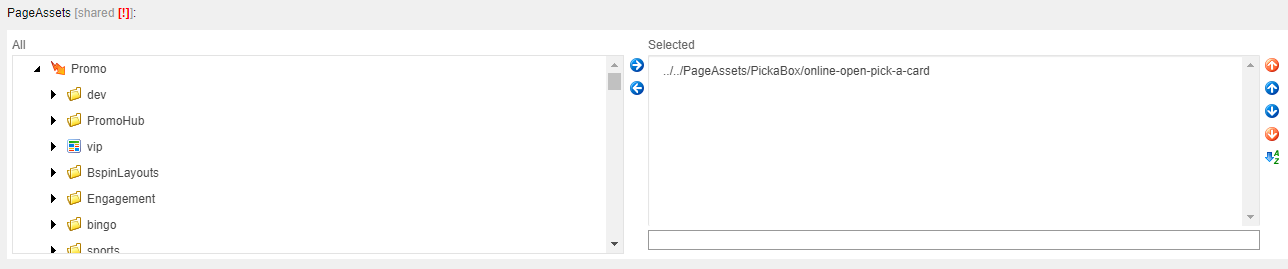
PageAssets
Replace the selected CSS asset with your newly created asset.
Overlay
PreLoginPage: replace the img src link with the media link for "Background 955x562 Desktop mock up" and the button color depending on your Brand.
Replace this line in the html code.
<img alt="" class="box-static-img" src="{insert image url}" style="width:100%;" />

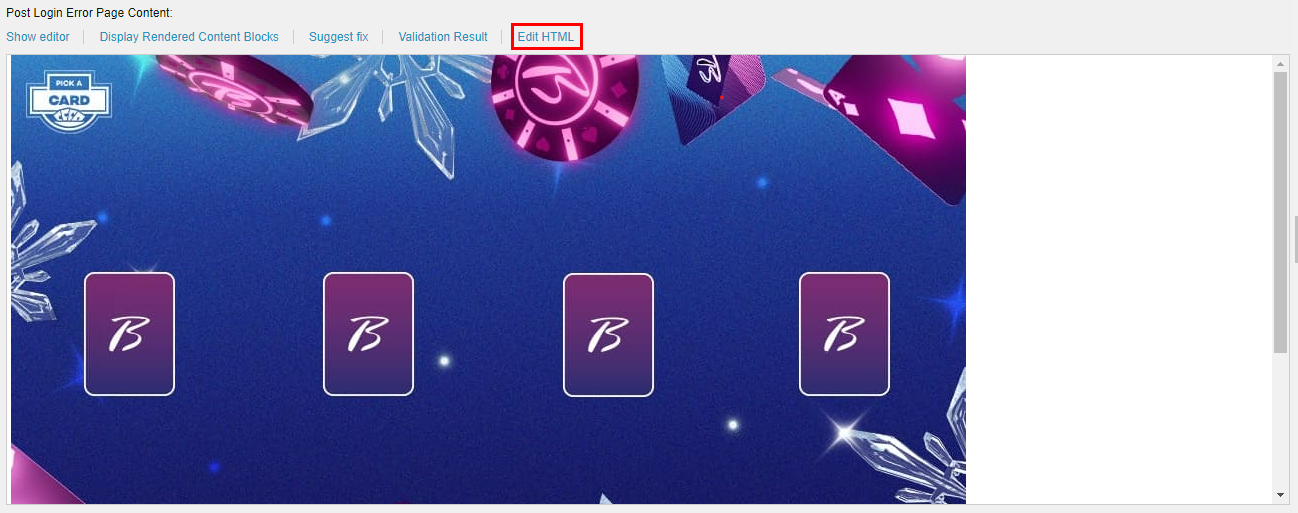
PostLoginErrorPage: replace the img src link with the media link for "Background 955x498 Desktop mock up", the button color depending on your Brand, and the button link depending on your ticket if Casino/Poker.
Replace this line in the html code.
<img class="box-static-img" alt="prelogin_wheel_only" src="{insert image url}" />
Pick A Box PAT
For updating the Test Spin The Wheel PAT, go to this page for reference: Pick a Box PAT.